
You may encounter one or more of the following issues when using a USB device with a Windows virtual machine:
- Device fails to mount: The USB device is not recognized or assigned a drive letter within the guest Windows OS.
- Device not detected: The virtual machine does not list the USB device in Device Manager or relevant hardware inventory tools.
- Partial or impaired functionality: The device appears connected, but certain features (e.g., data transfer, power delivery, peripheral controls) do not operate as expected.
- Intermittent connectivity: The USB device connects and disconnects unexpectedly during VM session.
- Other USB-related anomalies: Includes delayed enumeration, driver installation failures, or error messages when accessing the device.
As a first step, please read the basic information on how Parallels Desktop works with USB devices you connect to your Mac.
If you still have this issue, please follow these steps:
-
Shut down your virtual machine, quit Parallels Desktop, and disconnect your USB device from your Mac.
-
Connect your USB device to your Mac.
Make sure the device is detected on the Mac side, it should appear in Finder:
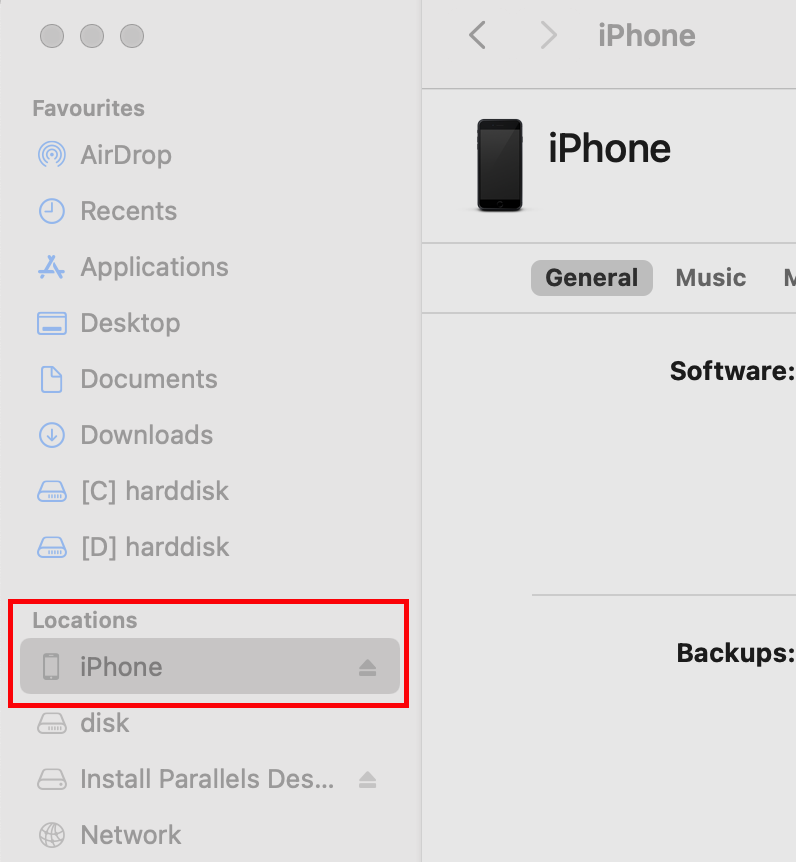
Important: your virtual machine will not be able to work with your USB device if your Mac fails to detect it.
-
Start Parallels Desktop, click on the Parallels Desktop icon > Preferences > Devices.
-
Check whether the device you would like to connect to your virtual machine is listed under Permanent Assignments list. Use "-" button to delete the device from the list.
-
Make sure Ask me what to do radio button is selected

-
-
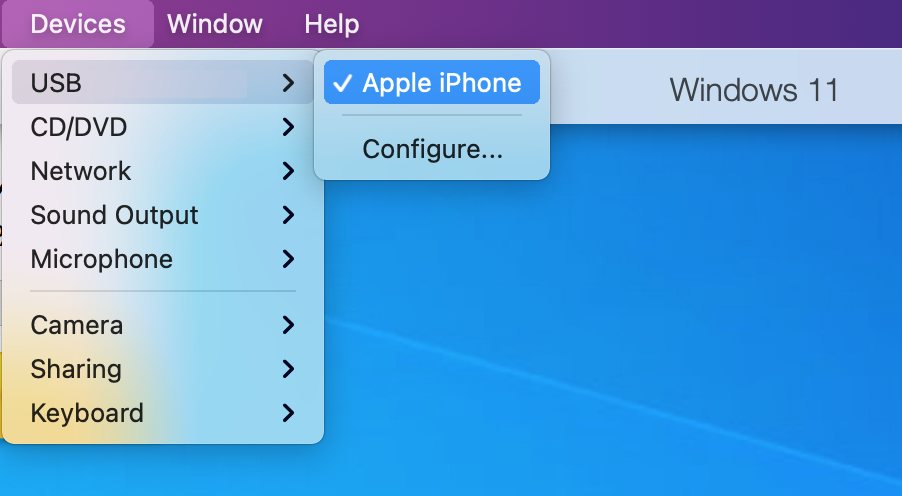
Launch your virtual machine. Once you have Windows up and running, go to Devices > External Devices and choose the device you would like to connect to your virtual machine.
-
The new device will now be installed in Windows.
-
To check whether the device got installed successfully, go to the Device Manager (press Win+R, type "devmgmt.msc" and click OK).
If for some reason the device failed to get properly installed, try to delete it from the Device manager and then click Scan for Hardware Changes.

To learn more about the troubleshooting steps for your specific USB device please refer to the respective device manufacturer.
Was this article helpful?
Tell us how we can improve it.