
Prerequisites
1. Have RAS Reporting Service configured as per the Reporting Service Guide
2. Confirm that reports are available to users within the RAS Console. If the report viewer within the RAS Console produces the error The permission granted to the user 'Domain\User' are insufficient for performing this operation. (rsAccessDenied), follow KB 131143 to resolve it first.
3. Confirm that the SSRS URL is accessible from the machine where reports are to be viewed: http://server.com:8085/ReportServer_Instance
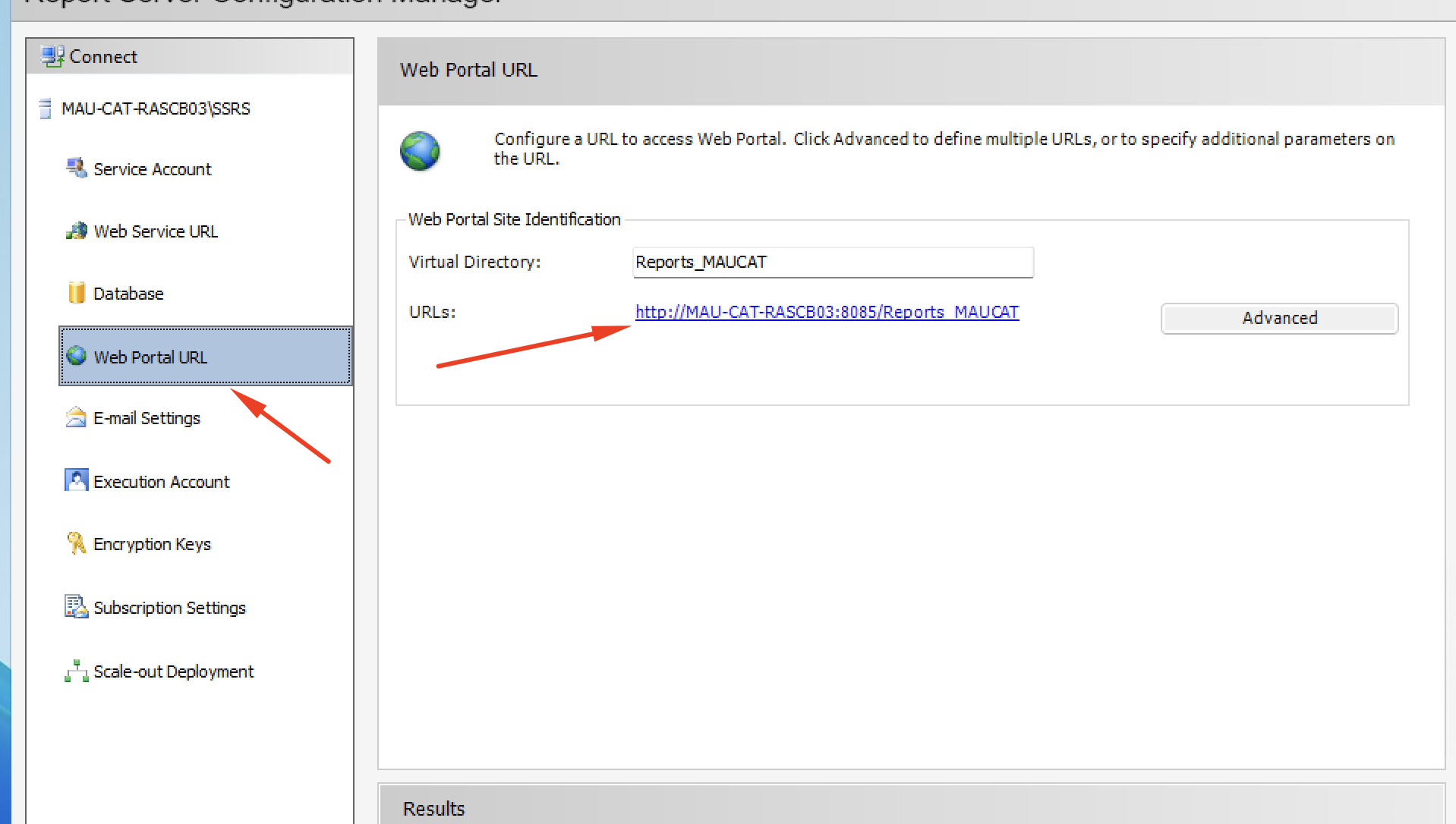
Configuration
To grant a user or group access to the SSRS Web Portal:
1. Navigate to the SSRS URL and log in as an administrator.
2. Navigate to Settings (gear icon) > Site Settings > Security and add user or user group as System user.
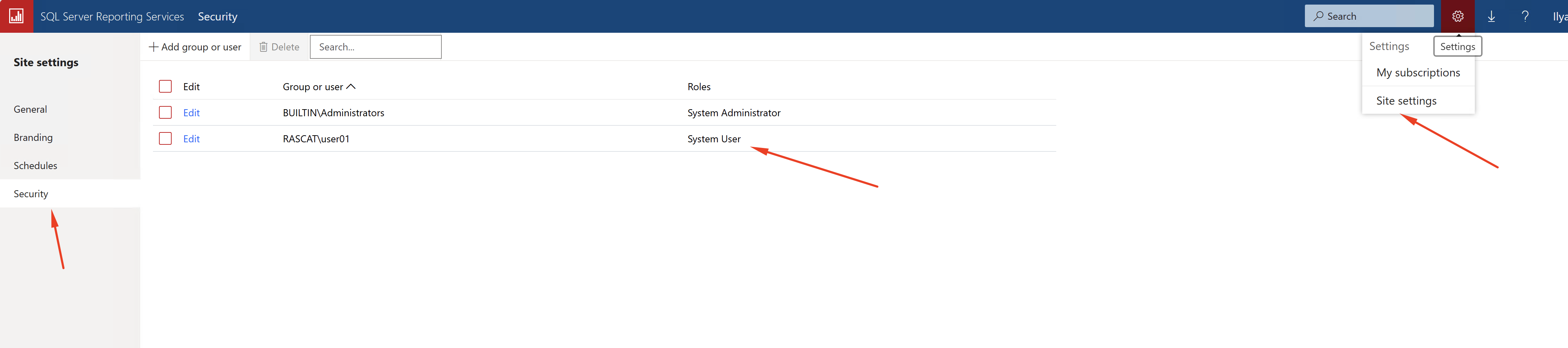
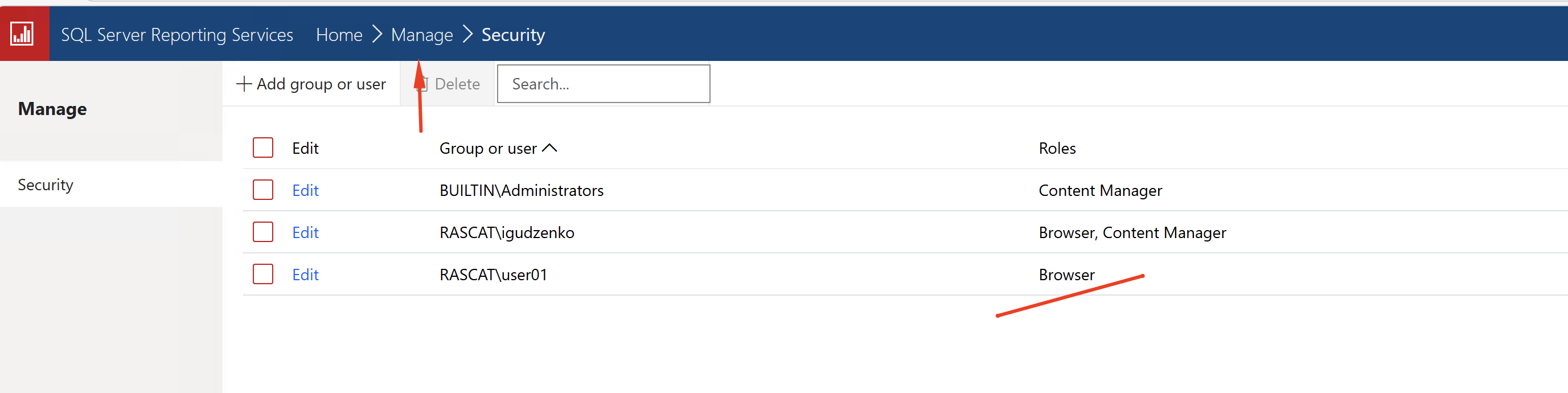
3. Navigate to Home > Manage folder > Security and add the same identity with Browser role. You can add additional roles as needed.
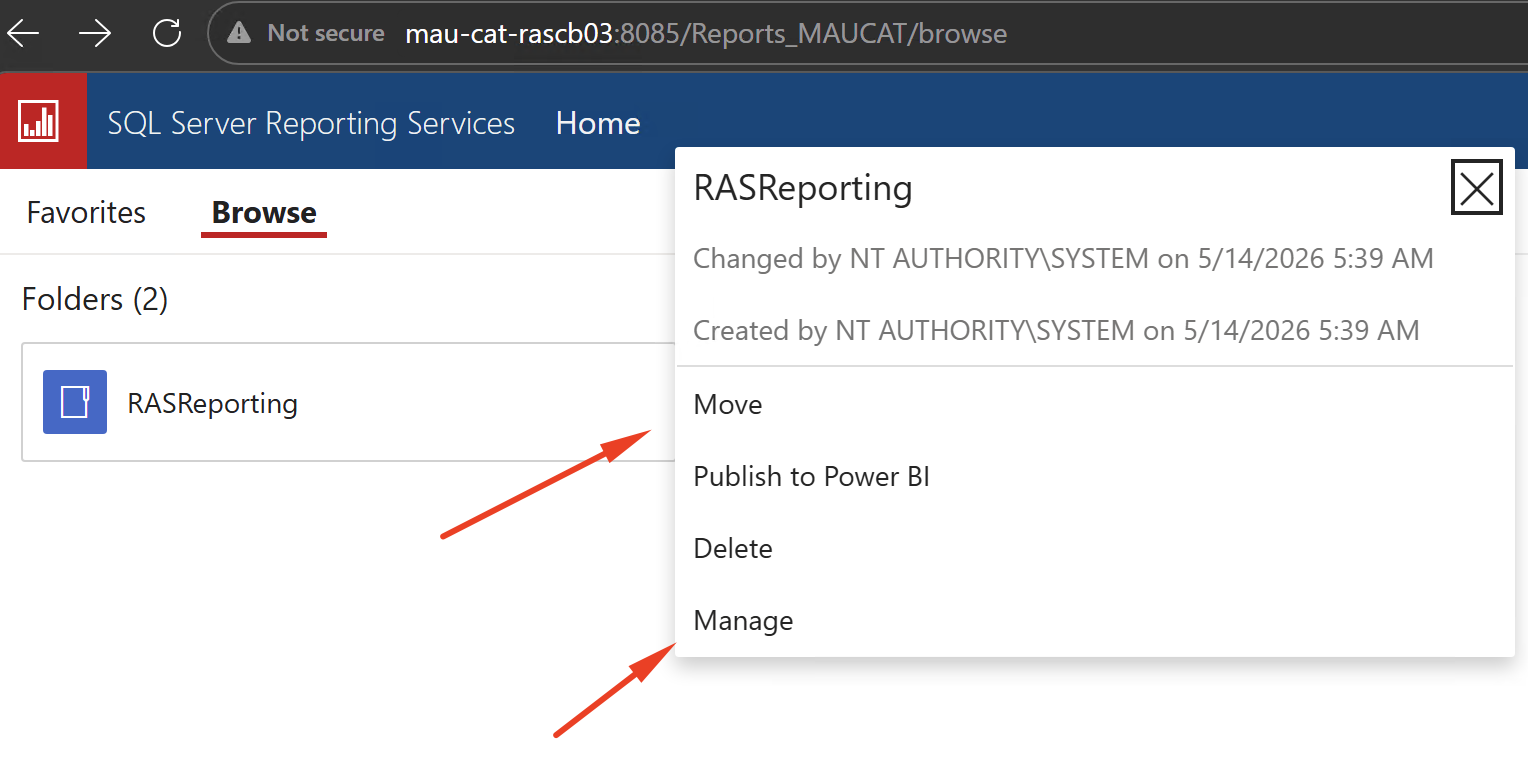
4. Navigate to the RASReporting folder> More info > Manage > Security and add the same identity with Browser role. You can add additional roles as needed.
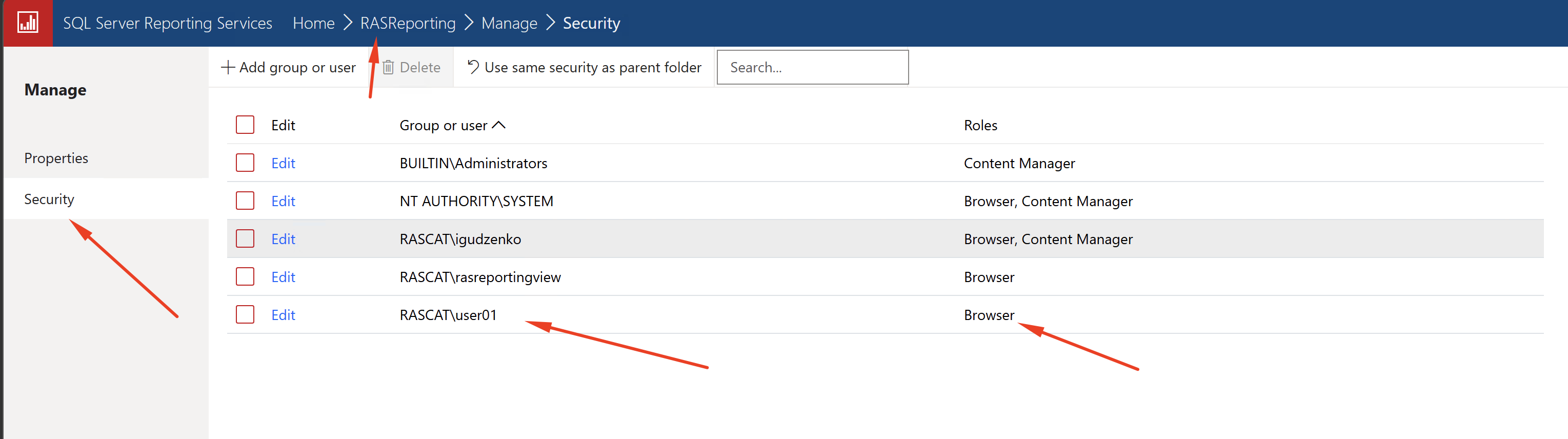
5. Confirm that the specified user can browse the folder, find a report, and launch it directly from the SSRS Web Portal. You can verify this from a separate machine or in a private browsing tab.
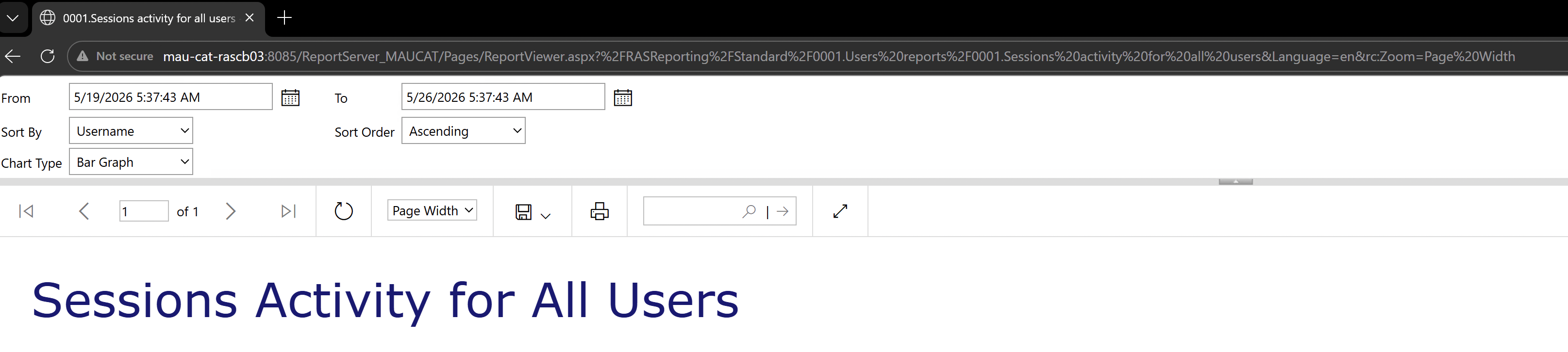
The specified user can now access RAS reports directly from the SSRS Web Portal without using RAS Console viewer.
Reference
Grant users access to a report server Microsoft SQL Server Reporting Service documentation
Was this article helpful?
Tell us how we can improve it.