
By default, a user can start multiple concurrent sessions on different RD Session Hosts, or launch applications from more than one device at the same time. Some environments require that each user be limited to a single active session, for example, to enforce per-seat licensing or to prevent the same application from being used simultaneously from two machines.
This article describes how to configure Parallels RAS and the underlying RD Session Hosts so that a user is restricted to one session at a time, regardless of which device or client they connect from.
How to limit a user to one active session
This requires two changes:
1. A Windows setting on every RD Session Host
2. Load Balancing setting in the Parallels RAS Console.
Both are needed as the registry value restricts the Windows session layer, and the RAS Console setting controls how the load balancer reconnects or redirects the user.
1. Configure RD Session Hosts to accept only one session per user
- Sign in to the RD Session Host with administrative privileges.
- Open Registry Editor (
regedit.exe). - Navigate to:
HKEY_LOCAL_MACHINE\SYSTEM\CurrentControlSet\Control\Terminal Server - Set the
fSingleSessionPerUservalue (REG_DWORD) to1. - Repeat this on every RD Session Host in the farm.

Note: This value corresponds to the Restrict Remote Desktop Services users to a single Remote Desktop Services session Group Policy setting, under Computer Configuration > Administrative Templates > Windows Components > Remote Desktop Services > Remote Desktop Session Host > Connections. It can be configured either directly in the registry as shown above, or via Group Policy — both set the same value.
2. Configure Load Balancing in the Parallels RAS Console
- Open the Parallels RAS Console.
- Go to Farm > Load Balancing.
- Check Reconnect to disconnected sessions.
- Uncheck Reconnect sessions using client's IP address only. If this option is left checked, a user who logs on from a different device gets a new session instead of being redirected to their existing one, because the load balancer matches by IP address rather than by user identity.
- Check Limit each user to one session per desktop.
- Check Disable Microsoft RD Connection Broker if Microsoft RD Connection Broker is configured in the environment. This prevents the Microsoft and Parallels RAS load balancers from making conflicting session placement decisions.
- Click Save and apply the changes.
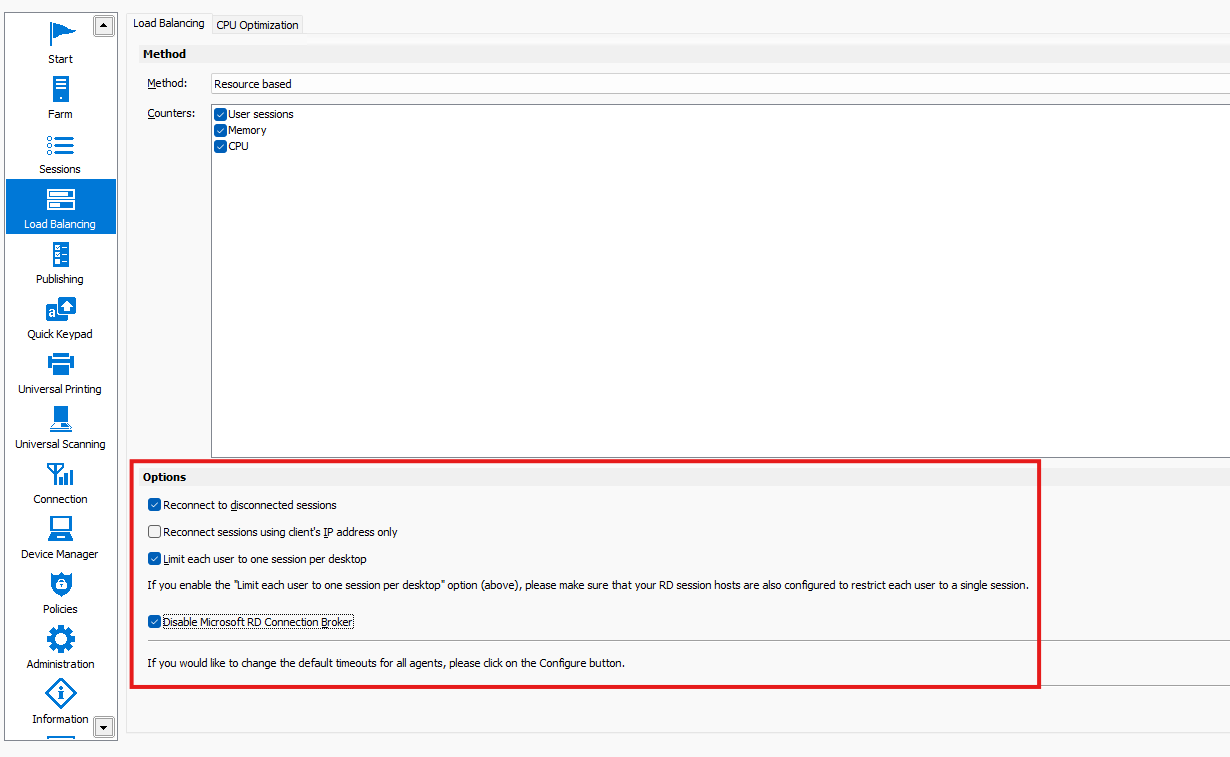
Important: The Limit each user to one session per desktop option only takes effect if fSingleSessionPerUser is also set to 1 on the RD Session Hosts. Configuring only one side does not reliably restrict the user to a single session.
With both settings applied, a user who is already connected and attempts to start another application or session, from the same device or a different one, is redirected to their existing session instead of a new one being created.
Was this article helpful?
Tell us how we can improve it.