
Overview
Some published applications expect a data path to be available under a specific drive letter (for example, V:) rather than a UNC path. In other cases, mapping a drive automatically simply makes the session feel more like a local desktop, so users aren't prompted to browse a UNC path every time they open or save a file.
There are two ways to get a drive mapped automatically in a RAS session: setting the -mapnetworkdrive special application parameter on a specific published item, or mapping the drive at the session host level with Group Policy so it applies to every session regardless of which application is opened.
Option 1: Set the mapnetworkdrive parameter on the published application
As from RAS 20.1, the -mapnetworkdrive special application parameter maps a network path to a local drive letter when the published application or desktop starts. It is set in the application's Parameters field and is consumed by the RAS shell — it is not passed on to the application itself.
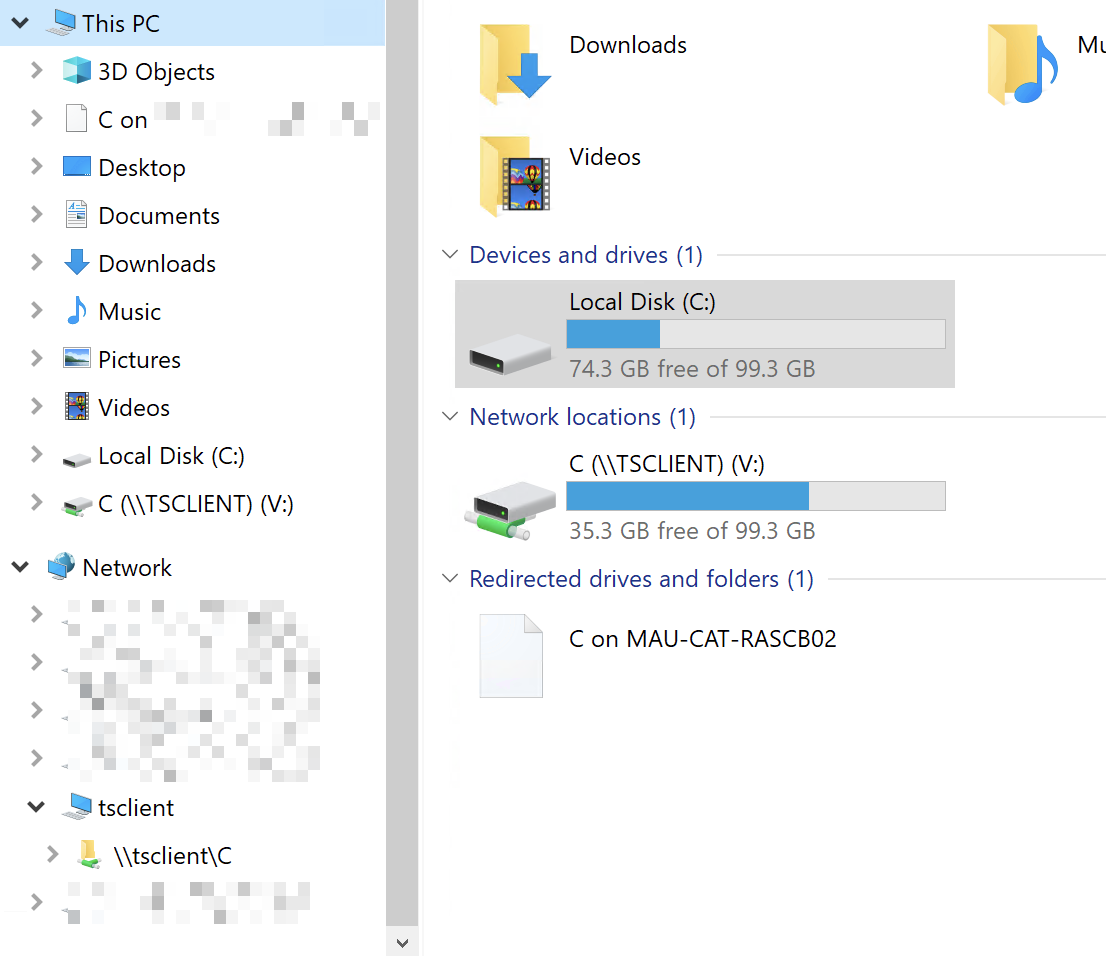
The path can be either a UNC path reachable from the session host, or a client-redirected drive exposed through \\tsclient\<drive letter> . For example, to expose the client's local C: drive as V: inside the session, use \\tsclient\c as the path — this behaves like running net use v: \\tsclient\c /persistent:no manually, so the mapping is recreated each time the application starts and isn't kept afterward.
To set the parameter:
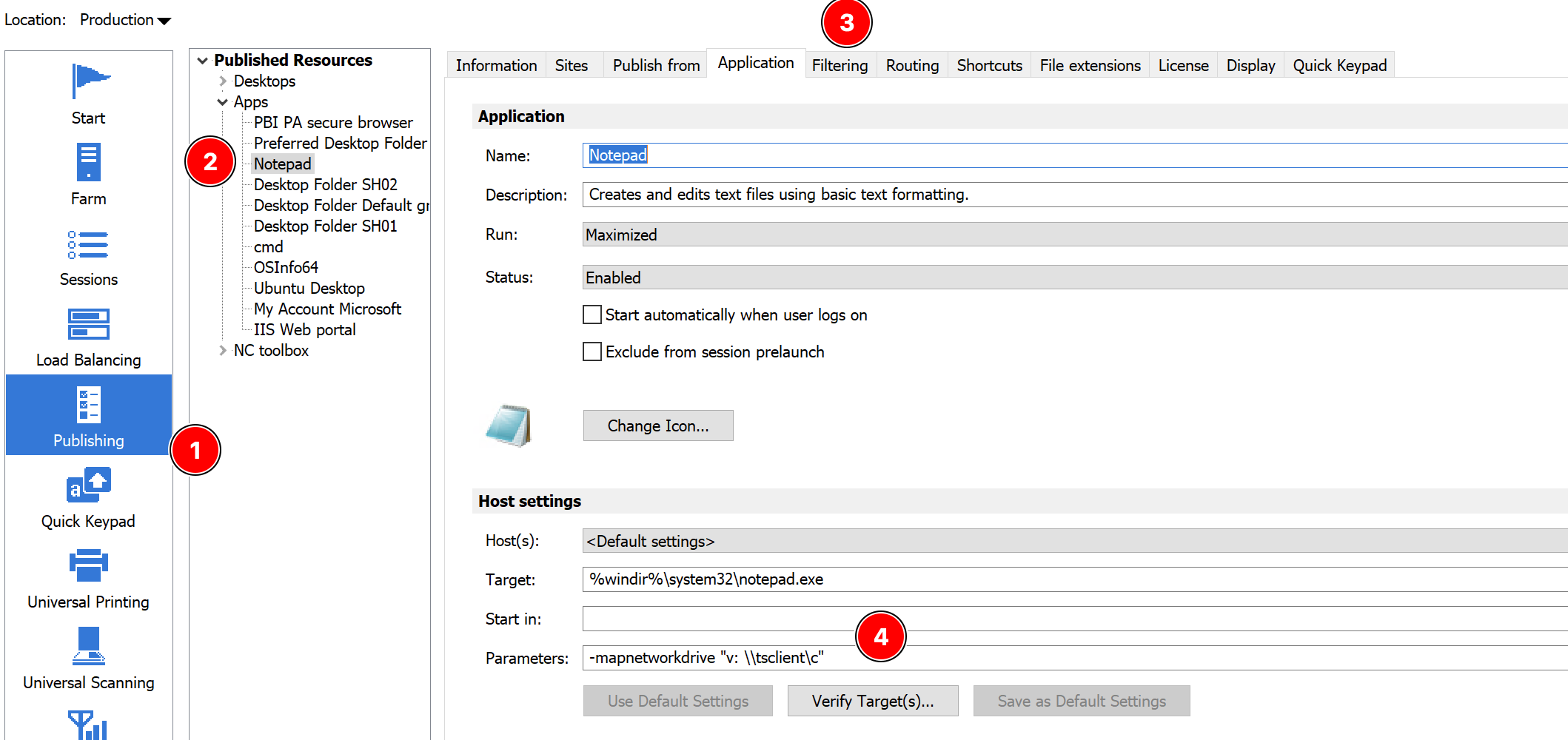
- Open the RAS Console and go to Publishing.
- Select the published application or desktop, then open the Application tab.
- In the Parameters field, add the parameter using this syntax:
-mapnetworkdrive "<drive letter>: <path>"
If the published application:- has no parameters — use
-mapnetworkdrive "v: \\fileserver\shared"as the entire contents of the field - already has parameters — prefix them with
-mapnetworkdrive "v: \\fileserver\shared"followed by a space, e.g.-mapnetworkdrive "v: \\fileserver\shared" /silent
- has no parameters — use
- Click Save as Default settings and apply changes.
- Reconnect the published application/desktop and confirm the drive letter appears in File Explorer inside the session.
Note: The parameter must be set on each site's published application/desktop — it is not a farm-level setting.
Note: Client drive redirection must be enabled on the connection (RAS Console → Connection settings, and on the client side under Local devices/drives) for the \\tsclient\ path to resolve. That can be drive letter (Parallels Client for Windows) or folder (other clients).
Option 2: Map the drive with Group Policy
Because a RAS session host is a standard, domain-joined Windows Server, a normal Group Policy drive mapping also works, and applies to every session on that host — published apps and published desktops alike — without configuring this via RAS.
Using Group Policy Preferences
- Open the Group Policy Management Console and edit (or create) a GPO linked to the OU containing the RAS session hosts.
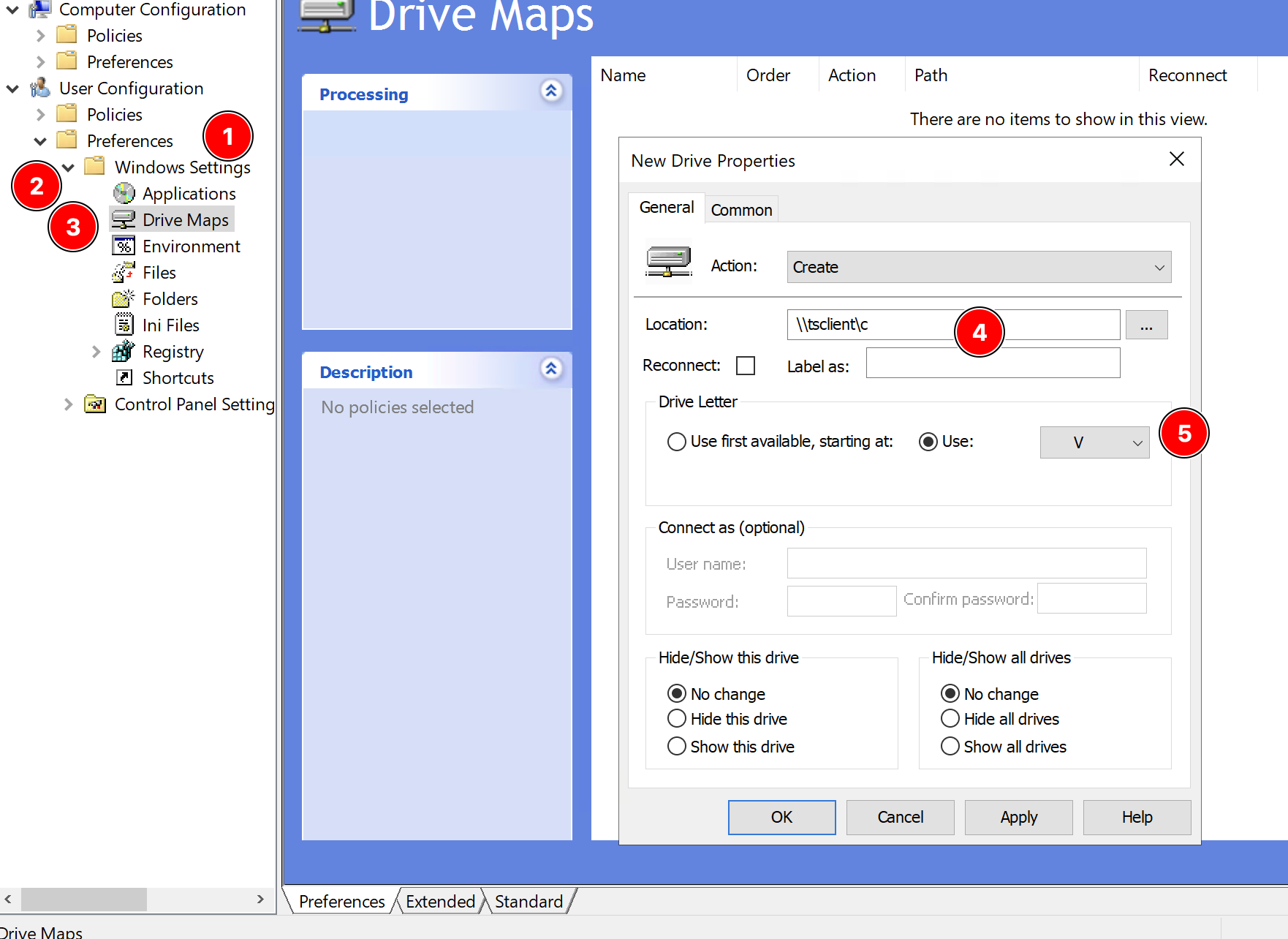
- Go to User Configuration → Preferences → Windows Settings → Drive Maps.
- Right-click → New → Mapped Drive.
- Set Action to Create, enter the Location (UNC path, e.g.
\\fileserver\shared, or\\tsclient\cfor a client-redirected drive), and choose the drive letter.
- On the RAS session host, run
gpupdate /force(or wait for the next policy refresh), then have a user log off and back on to test.
Using a logon script
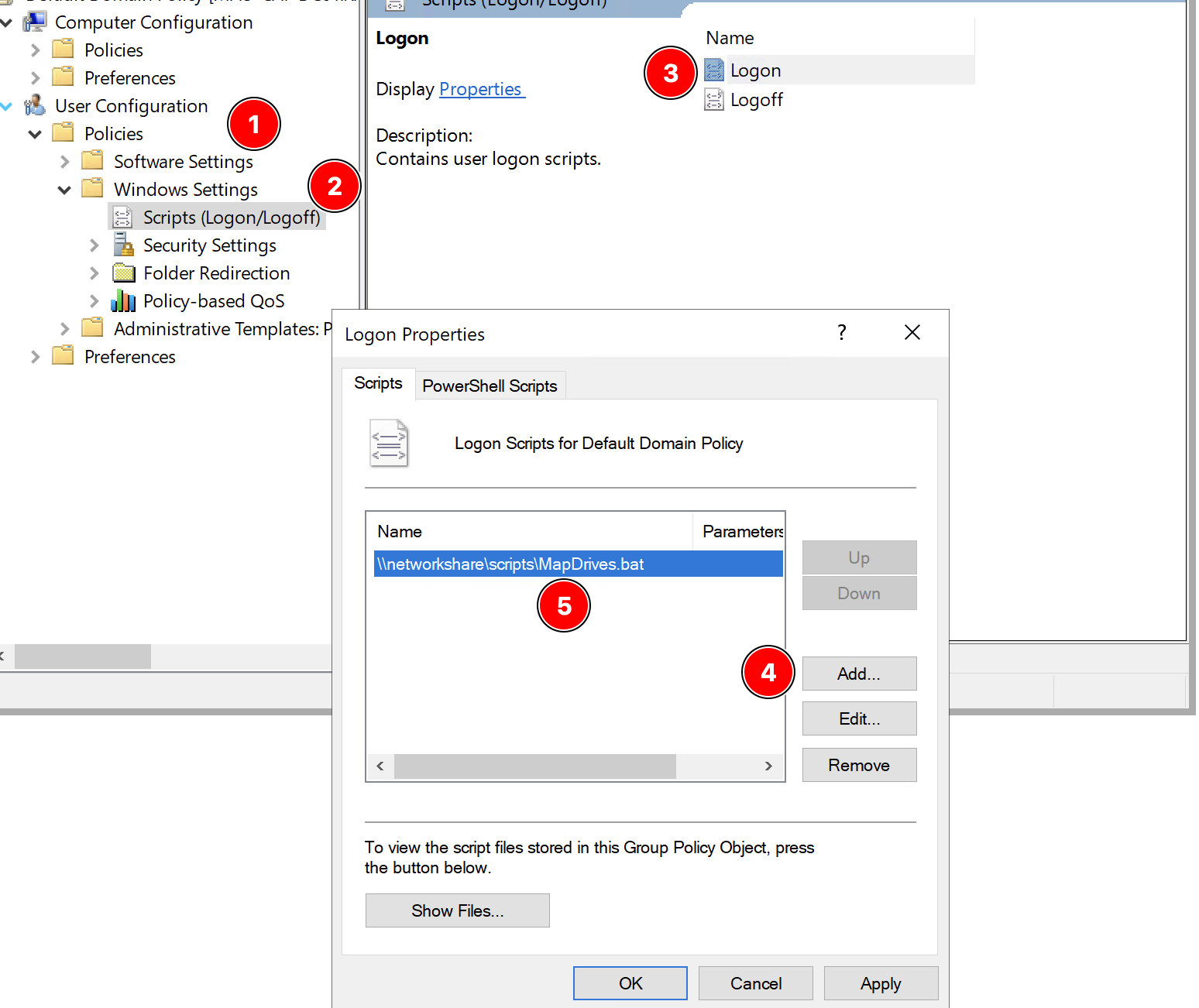
- On the accessible RAS session host share, create a script (e.g.
MapDrives.bat) containing:net use V: \\fileserver\shared /persistent:no
or, for a client-redirected drive:net use V: \\tsclient\c /persistent:no
- In the GPO, go to User Configuration → Policies → Windows Settings → Scripts (Logon) and add the script.
Note: /persistent:no keeps the mapping scoped to the current session and stops Windows from trying to reconnect a stale drive at a later, unrelated logon.
Note: Use -mapnetworkdrive when only a specific application or desktop needs the drive, or different published items need different drive letters. Use Group Policy when most or all published apps/desktops on the host should see the same drive, or drive mappings are already managed centrally via GPO for other machines.
Was this article helpful?
Tell us how we can improve it.