
Symptoms
Users are unable to authenticate successfully when User Enrollment settings are enforced with "Do not allow".
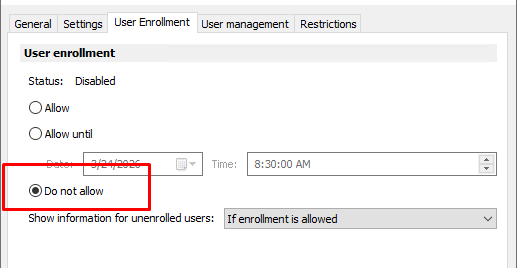
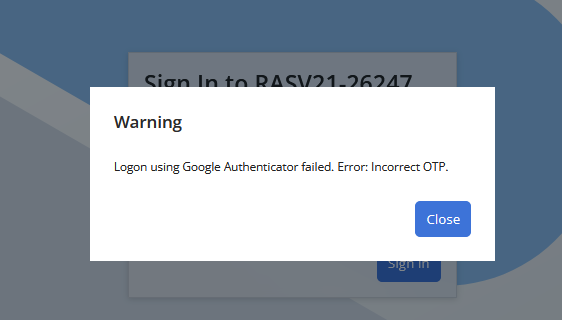
When the above setting is enabled, already enrolled users will get the below error message even if the correct OTP is inserted.
This may occur when users enter only the username (e.g, 'tom') and the system fails to correctly resolve the domain/UPN during authentication.
Cause
The issue is caused by an incorrect Domain(Legacy (NetBIOS) logon/suffix) value not configured in the Parallels RAS Theme settings.
When the "Do not Allow" setting is enabled, the restriction will verify the Legacy logon/suffix in order to authenticate already enrolled users.
Resolution
Example:
Users should log in using "username@%userdomain%" for authentication with MFA
Username: tom
UPN: tom@ras.local
Legacy(NetBIOS) logon(suffix): tom@ras
When logging with tom@ras, the users will not be notified with the error message if this user is already enrolled.
How can it be verified and enforced
1. Configure Parallels RAS Authentication Settings
-
Open Parallels RAS Console
-
Navigate to: Connection → Authentication
-
Ensure the correct Authentication domain is configured (example: RAS)
-
Enable All Trusted Domains (recommended when multiple domains or trusts exist)
-
Click Apply to save changes
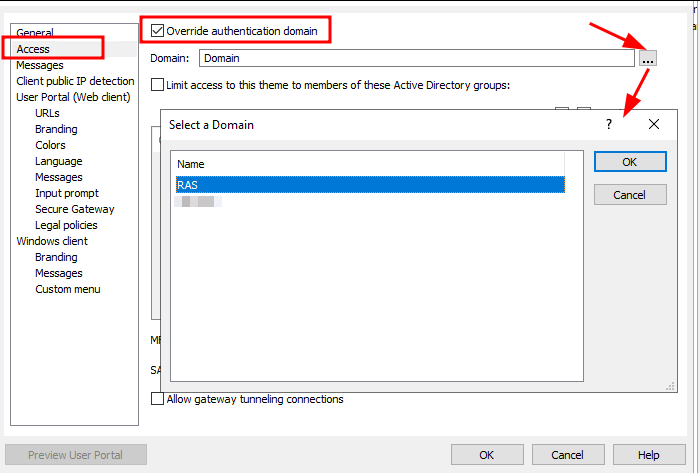
2. Correct the Domain in Theme Settings (Final Fix)
-
In Parallels RAS Console, go to: Farm → Themes
-
Open the <Default> theme or the theme linked to MFA → go to the Access tab
-
Check the Override authentication domain
-
Under Domain, do not manually type the domain
-
Click the '...' and select the domain from the list: ras
-
Click Apply
Was this article helpful?
Tell us how we can improve it.