
When attempting to map the Ctrl + Shift + Space keyboard shortcut to the Hankaku/Zenkaku function in a Windows virtual machine, it does not produce the expected results.
This behavior has been internally verified by the Parallels Desktop Engineering team and confirmed as a system limitation. Mapping the Ctrl + Shift + Space shortcut to the Hankaku/Zenkaku function is currently unsupported.
Note: The Hankaku/Zenkaku (半角/全角) function is a fundamental concept in Japanese computing, typography, and keyboard layouts. It refers to the distinction between half-width and full-width characters, and it exists both as a physical key on Japanese keyboards and as a text-formatting tool in software.
To resolve this issue, apply one of the following two workarounds:
A. Configure 106/109 Keyboard Layout in VM Settings
This is the default configuration if the virtual machine was created in Parallels Desktop build 26.2.2 or newer on a Japanese host locale.To apply this workaround, follow the steps below:
-
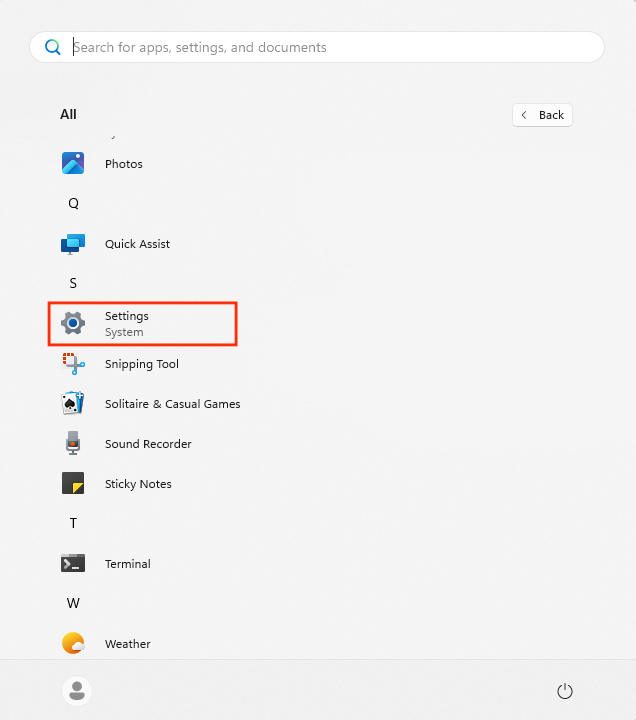
Start the Windows virtual machine and open Settings.
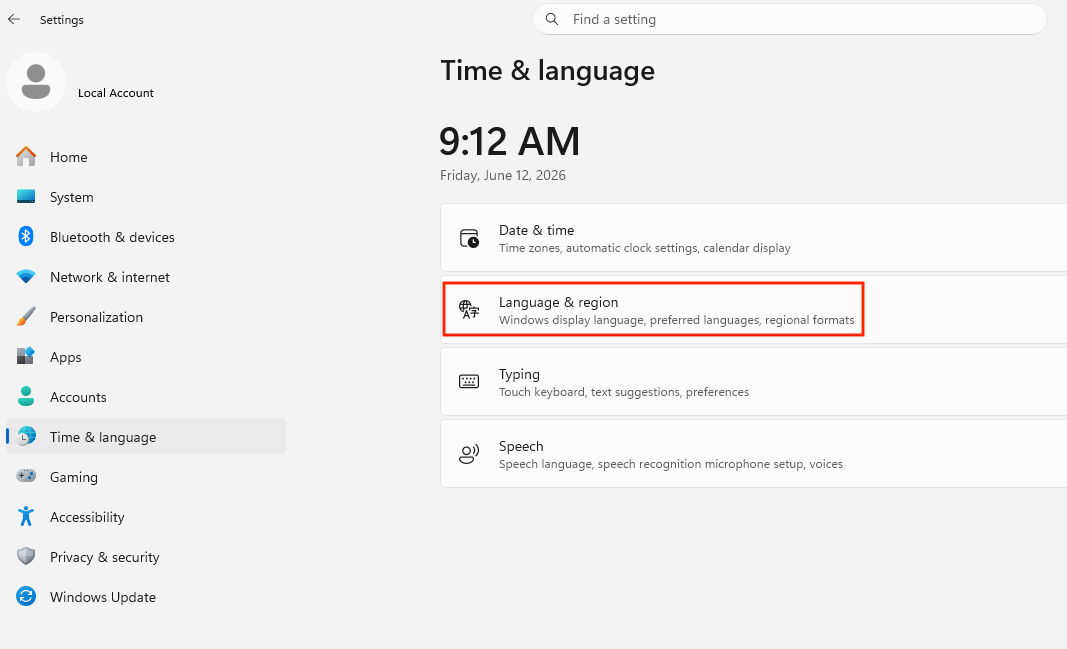
- Click Time & Language > Language & Region.
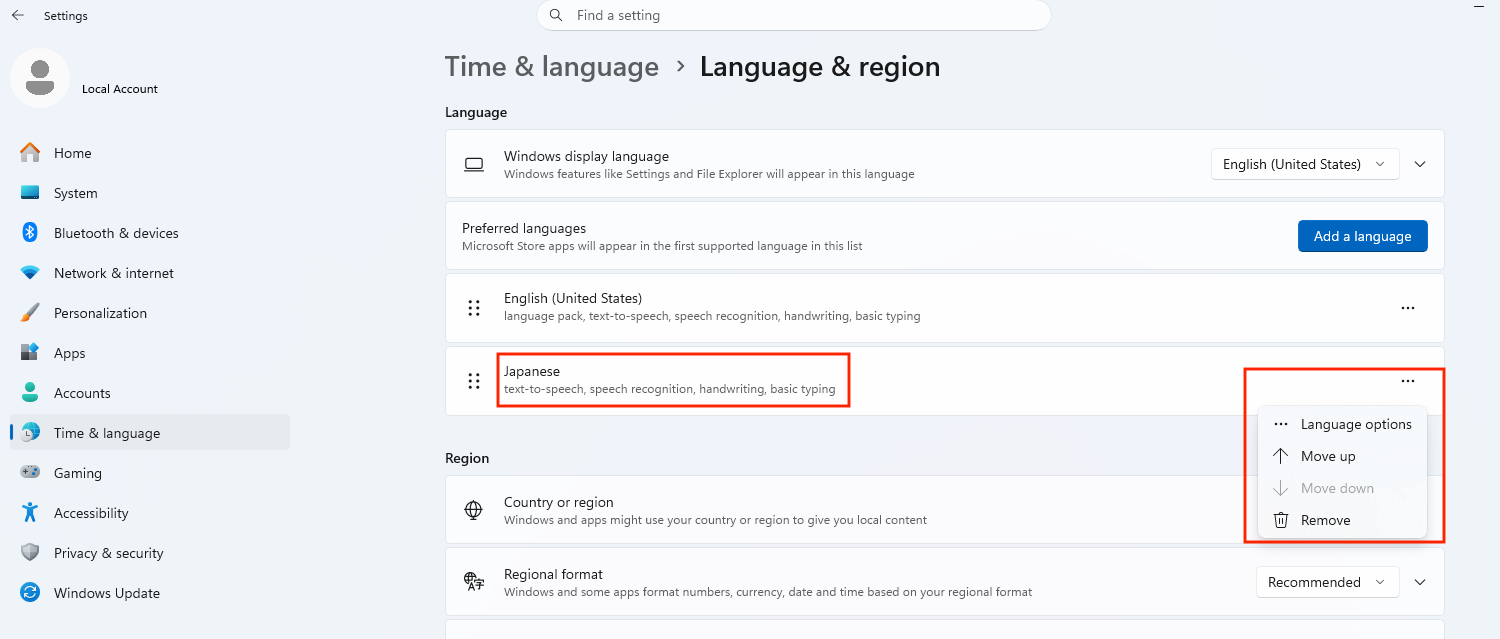
- Under Language, click the ... (ellipsis) next to Japanese, and then click Language Options.
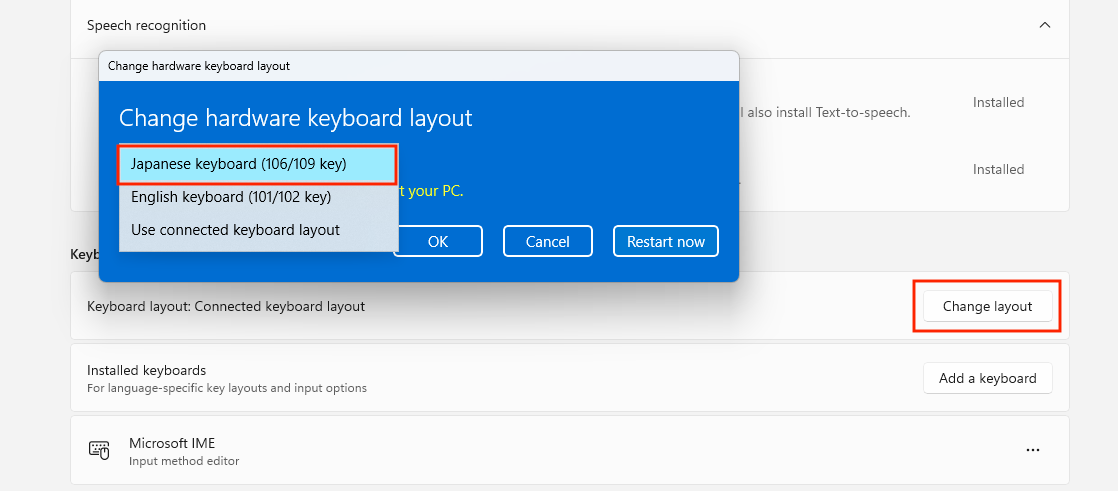
- In the Keyboard section, change the keyboard layout to Japanese Keyboard and select Japanese Keyboard (106/109 keys).
B. To use Caps Lock as the alternative key
You can create a shortcut that presses the Caps Lock key instead of the half-width/full-width key, or simply use the default shortcut setting by pressing the Caps Lock (Eisu) key.
- Ensure your keyboard is currently set to the Japanese input method (you should see the "A" or "あ" icon in your taskbar).
- Find the Caps Lock key on your keyboard. (On Japanese keyboards, this key is often labeled as 英数 / Eisu).
- Simply press the Caps Lock key once.
- Your keyboard will immediately switch to direct alphanumeric (half-width) input mode. You can press your Hiragana key (or Half-width/Full-width key) to switch back to Japanese.
Was this article helpful?
Tell us how we can improve it.