
Symptoms
When a user launches a published resource using the Parallels Client, the following security warning appears:
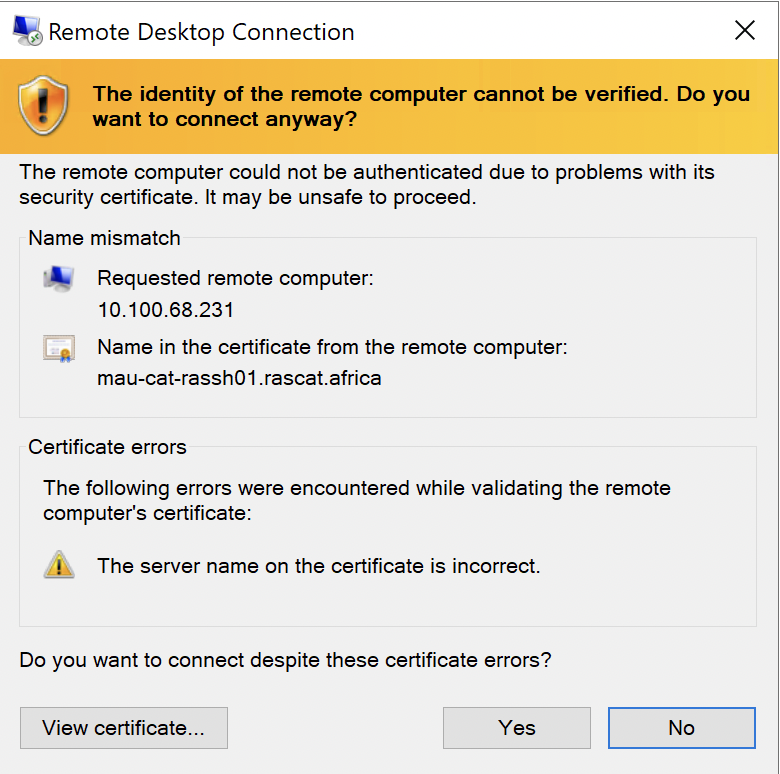
The warning message may reference other causes, like the loopback address (127.0.0.1) or the IP address of the RAS Primary Connection server, or that the certificate issuer cannot be verified.
Cause
This warning occurs because the client is configured to strictly validate the Remote Desktop Protocol (RDP) server's certificate, but in a Gateway SSL connection mode, the RDP session host is not directly accessible.
The primary reasons for this configuration are:
1. A setting enforced in the Parallels Client via Connection Properties or Client Policy.
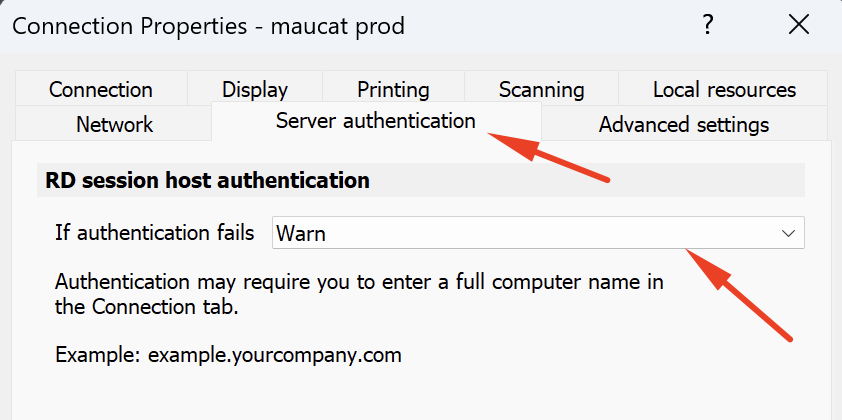
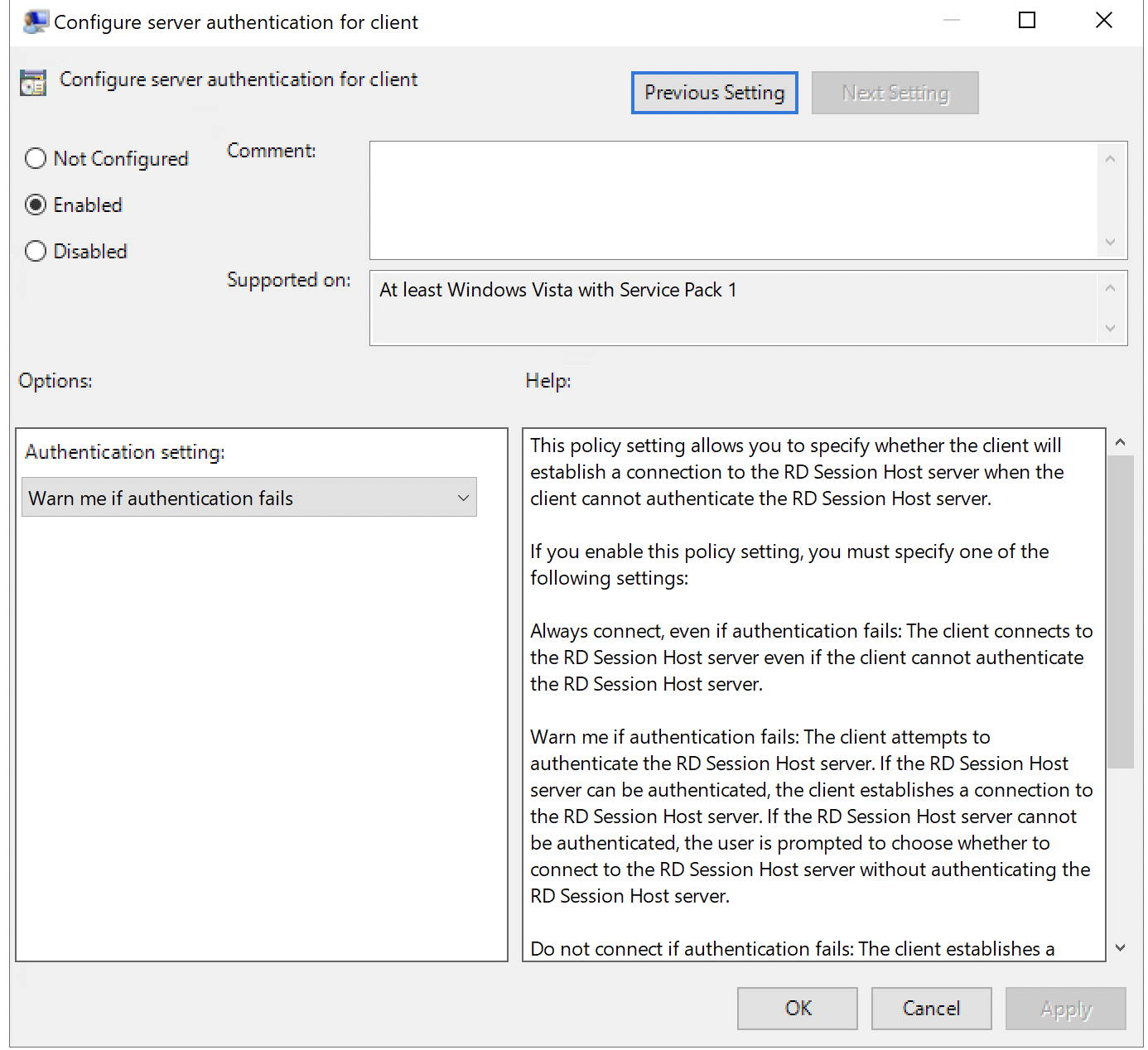
2. A Group Policy Object (GPO) applied to the client machine under:
Computer Configuration > Policies > Administrative Templates > Windows Components > Remote Desktop Services > Remote Desktop Session Client > Configure authentication for client
Technical Background: When using Parallels Client with Gateway SSL connection mode, all communication (service transactions and RDP traffic) between the client and the RAS Gateway is already encrypted using the RAS Gateway's certificate. In this mode, the client connects to the RAS Gateway, which then tunnels the connection to the target session host. The RAS Gateway acts as a reverse proxy, meaning the client has no direct network connectivity to the session hosts for RDP server authentication to occur.
More about RAS Connection modes in Parallels Client User's Guide
Resolution
Choose one of the following methods to resolve the warning:
-
Disable strict RDP authentication in Parallels Client:
-
Navigate to the specific connection's Properties within the Parallels Client.
-
Disable the setting that enforces RDP server authentication (the exact name may vary by client version).
-
Alternatively, modify the Client Policy in the RAS Console to disable this requirement for affected users or devices.
-
-
Modify the Group Policy Object (GPO) on the client:
-
Open the Group Policy Editor on the client machine.
-
Navigate to:
Computer Configuration > Policies > Administrative Templates > Windows Components > Remote Desktop Services > Remote Desktop Session Client > Configure authentication for client -
Set the policy to "Not configured" or "Connect" (which allows connections even if authentication fails).
-
Run
gpupdate /forcefrom an elevated command prompt to apply the change.
-
-
Use Direct Connection mode (if server authentication is mandatory):
-
If strict RDP server authentication is a non-negotiable security requirement, configure the published resource or client settings to use Direct connection mode.
-
This mode establishes the RDP session directly to the session host, enabling the standard RDP server certificate validation process. Note that this may have network topology and firewall implications.
-
Was this article helpful?
Tell us how we can improve it.