
Your subscriptions are automatically tied to the account you are signed in to at the moment of a product activation, and then they are stored in the Parallels cloud.
Note: Once you receive a Parallels Desktop for Mac Business Edition license key from a Parallels Sales representative, Parallels reseller, or after purchasing a Parallels subscription online, you must register it in your company Parallels business account before use.
You can view and manage all your subscriptions in your Parallels account at https://my.parallels.com/.
After sign in you will see the Dashboard page with your products overview.
To view details of an active subscription, click on Active Subscriptions in one of the product boxes. You will see the list of active subscriptions with their renewal or expiration date and the number of licenses it includes.

Click on the subscription you'd like to manage. You will see the following information about your subscription:
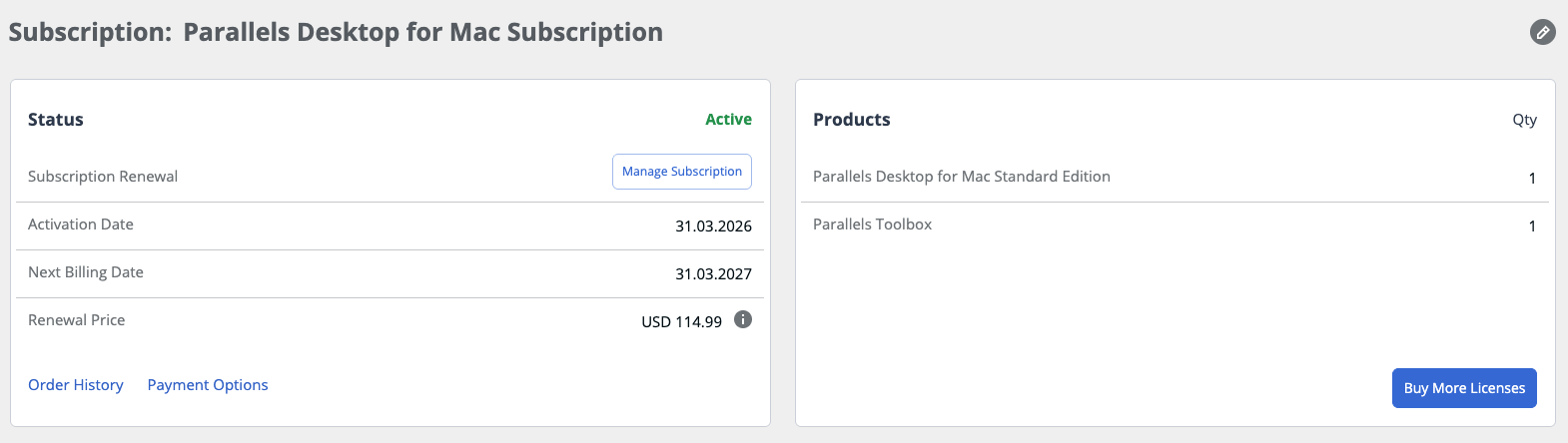
Status:
- Active - the subscription is now active. All products activated by licenses that belong to this subscription can be used without any limitations.
- Expired - the subscription has expired. All products activated by licenses that belong to this subscription cannot be used anymore.
- Grace period - the subscription is in the grace period, which started the next date after the date when the subscription had to renew. Possible reason for the grace period: Your subscription was scheduled for renewal on a specific date, but payment has not been received. You have a grace period of 7 days (starting from the date of unsuccessful renewal) to complete the payment for Parallels Desktop and Parallels Desktop Pro; 30 days for Parallels Desktop Business. If you don’t complete the payment during this period, all Parallels products and services included into the subscription will no longer function.
Subscription renewal - the status of automatic renewal. Possible values are:
- Manage Subscription – auto-renewal is enabled, the renewal amount will be charged from the assigned payment method on the date indicated under Expiration Date. You can turn the automatic renewal off by clicking Manage.
- Turn On Auto Renewal – this is an automatically renewable subscription, that has auto-renewal canceled. You can turn the automatic renewal on by clicking Turn On.
You can find more details about changing the auto-renewal status in KB 123306.
Activation Date – the date when the subscription was started. A subscription may start:
- At the date of purchase – for subscriptions purchased at the Parallels Online Store or at the App Store (Parallels Access, Parallels Desktop for Mac App Store Edition subscriptions).
- At the date of the activation/registration – for subscriptions purchased in retail and resellers' online stores.
Expiration date – the date when the subscription expires if auto-renewal is off, or is renewed if auto-renewal is on.
Order history – your online orders at the Parallels Online Store.
Payment options – here you can view and change the payment method for the subscription renewal.
Products – additional products included into the subscription and their quantity.
License Keys – activation keys that should be used for Parallels product activation.
Buy More Licenses – If you have a subscription, clicking on this option gives you options to purchase additional licenses for the same subscription as illustrated in KB 123525.
Was this article helpful?
Tell us how we can improve it.