
Parallels Desktop requires permission to access the Mac’s camera, microphone, and Bluetooth devices. If these permissions are not granted in macOS settings, such devices will not be available within Windows or other virtual machines.
To enable camera, microphone, or Bluetooth access in your Parallels Desktop virtual machine, complete the following steps:
- Open macOS System Settings > Privacy & Security > select the checkbox next to Parallels Desktop under Camera, Microphone and Bluetooth sections:
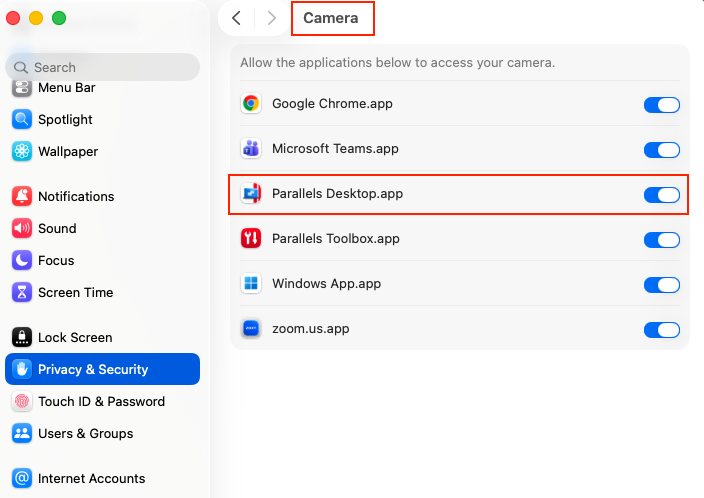
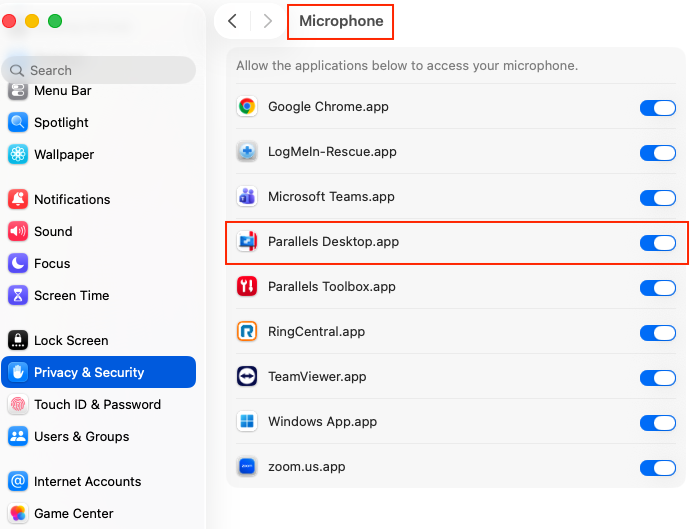
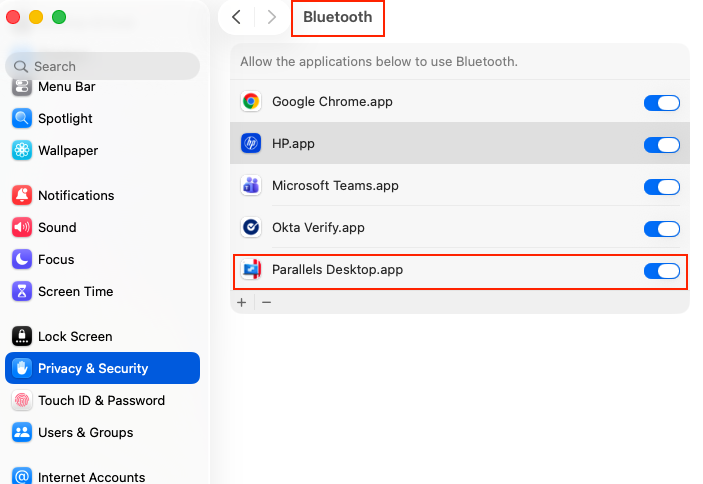
Note: After you allowed access to camera, microphone or Bluetooth, make sure to quit and restart Parallels Desktop.
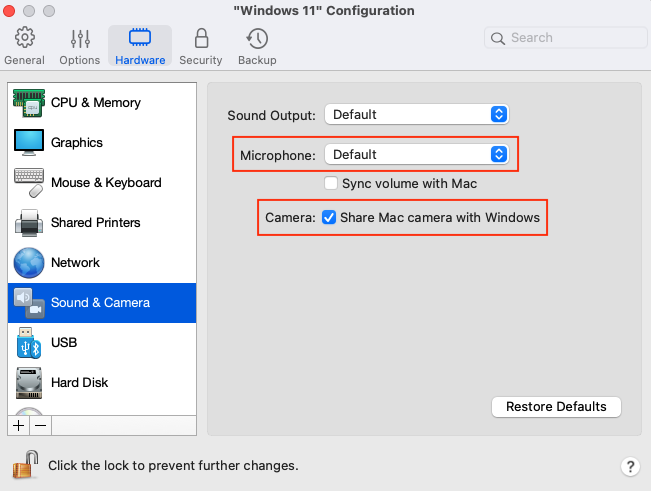
2. Go to Windows virtual machine's configuration > Hardware > Sound & Camera > make sure that the Microphone is not disabled and Share Mac camera with Windows is checked:
- Make sure that Parallels Tools are installed, then check the camera, microphone, or Bluetooth. If any of these devices do not work yet, reinstall Parallels Tools and check the application settings that use them.
Was this article helpful?
Tell us how we can improve it.