
Symptoms
Location of specific characters like '@', '{' , '#', 'ô', 'è' and many others differ greatly in macOS and Windows keyboard layouts, so you need to use different key combinations and shortcuts to type them. To eliminate this inconvenience you need to choose equal layouts in Mac and Windows.
NOTE: Sometimes it is impossible because there is no appropriate pair for every existing Mac layout in Windows and vice versa.
Resolution
- Start a Windows virtual machine.
- Go to Start -> Settings -> Time and language.
- Switch to the Language tab, and then select the respective language under the Preferred languages subtitle.
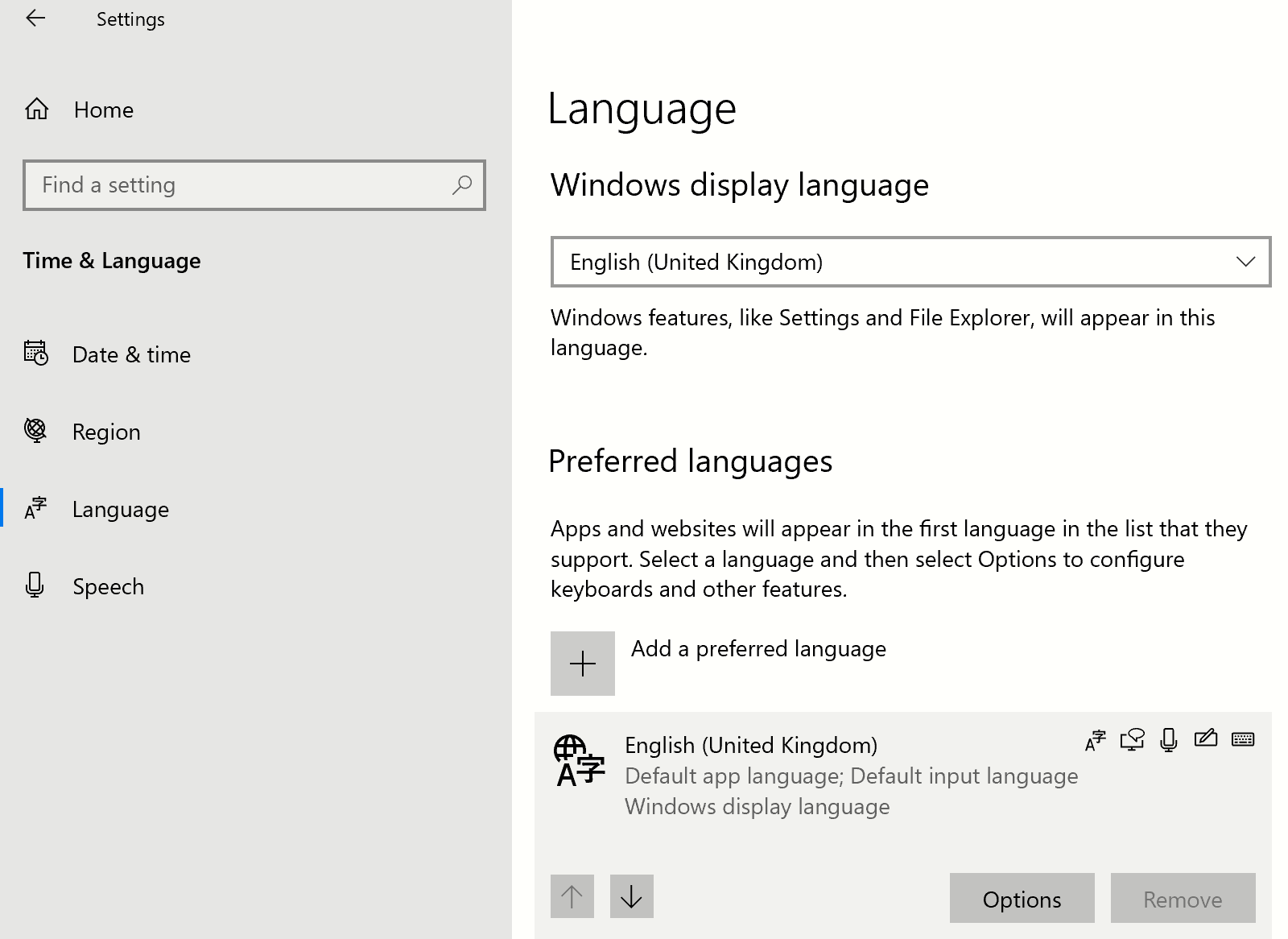
- Change the keyboard layout you currently use to the layout that has (Apple) - Parallels ending:
- Click the Options button.

- Click Add a keyboard button and select the preferable layout.

- Once layout is installed, change the language and check how it works.
Was this article helpful?
Tell us how we can improve it.