
Symptoms
I cannot install Parallels Tools. The installation hangs, rolls back or stops with or without an error message.
Cause
- 3rd party applications or antivirus software are blocking Parallels Tools installation.
- Stuck Parallels Tools components from the previous version.
- Corrupted Windows environment.
Troubleshooting
- Before going any further please take a snapshot (Actions > Take Snapshot) to be able to revert back to a pre-troubleshooting point.
- Disable or uninstall 3rd party antivirus software > restart Windows and install Parallels Tools again (Actions > Reinstall Parallels Tools).
If this did not help and Parallels Tools still fail, proceed to the next step.
- Uninstall Parallels Tools by right-clicking Start menu button > Apps and Features > find Parallels Tools in the list of applications > select Uninstall.
Restart Windows and install Parallels Tools again (Actions > Install Parallels Tools).
If this did not help and Parallels Tools still fail, proceed to the next step.
- Perform clean boot in Windows by disabling 3rd party applications' services.
NOTE: in step 3 keep both Parallels Tools services enabled.
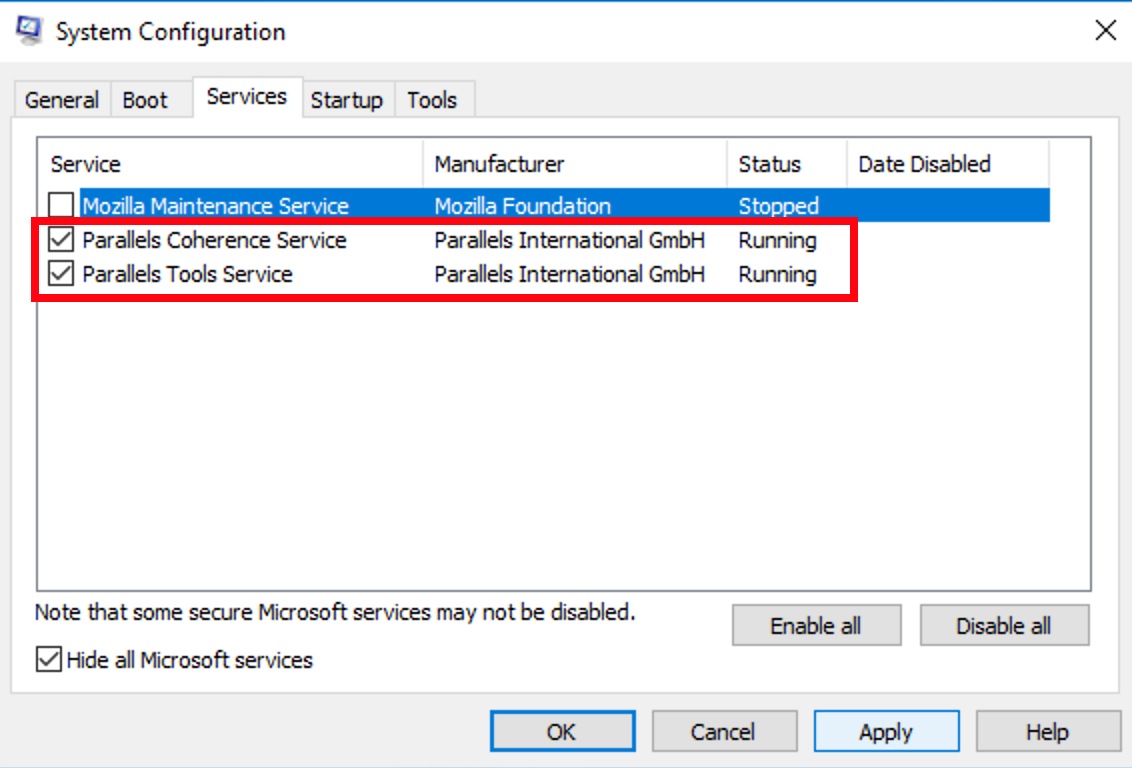
Restart Windows and install Parallels Tools again (Actions > Install Parallels Tools).
If this helped and Parallels Tools installed successfully, enable all services back so your 3rd applications function properly.
If this did not help and Parallels Tools still fail, proceed to the next step.
- Scan your system for integrity violations.
Check your virtual hard disk for corrupted sectors.
Restart Windows > open File Explorer > find DVD Drive (D:) Parallels Tools > right click it and Open.
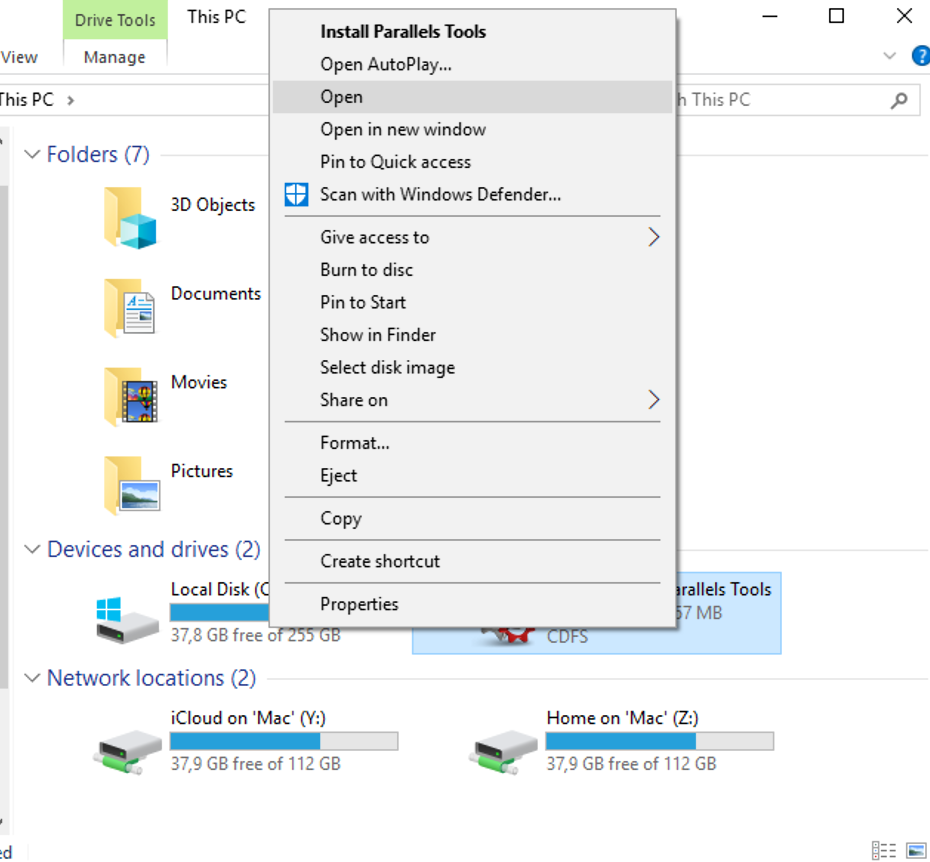
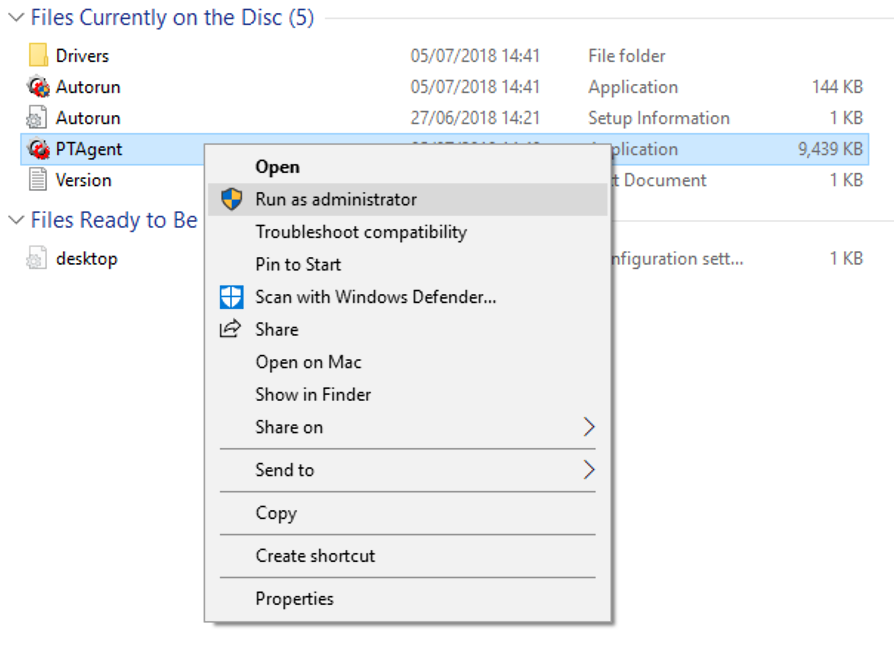
Find PTAgent in the list of files > right click it and choose Run as administrator.
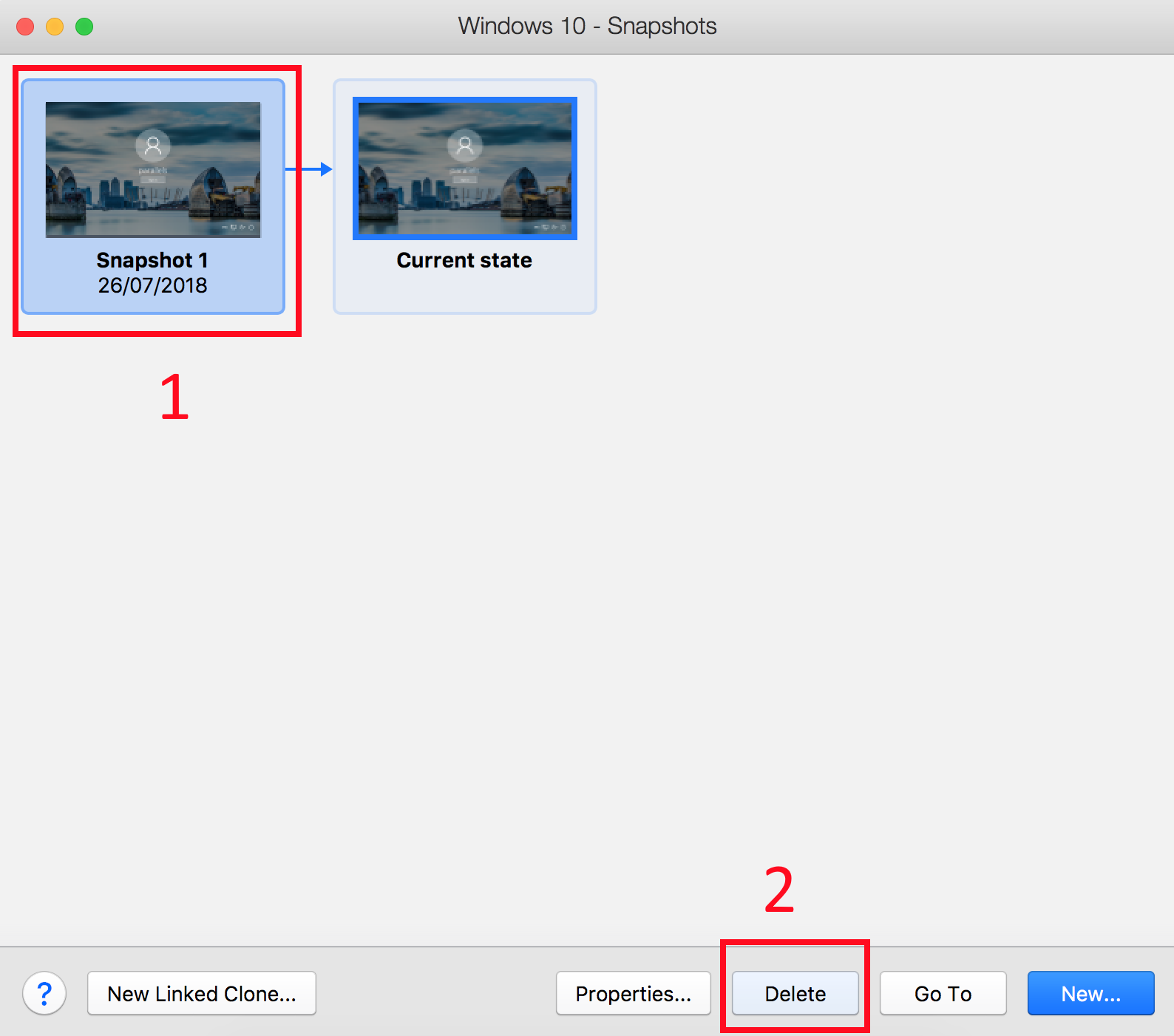
- When the issue is resolved remove the snapshot taken in step 1 by going to Actions > Manage Snapshots > choosing the snapshot > pressing Delete > Yes.
Advanced troubleshooting
If the steps above do not fix the issue try installing/reinstalling Parallels Tools in Safe Mode by following these steps:
- Boot Windows into Safe Mode using one of the methods described in this article.
- Once booted, log into Windows click Search icon and type in ‘cmd’ and press Enter to open the command prompt.
- In the command prompt type in the following string:
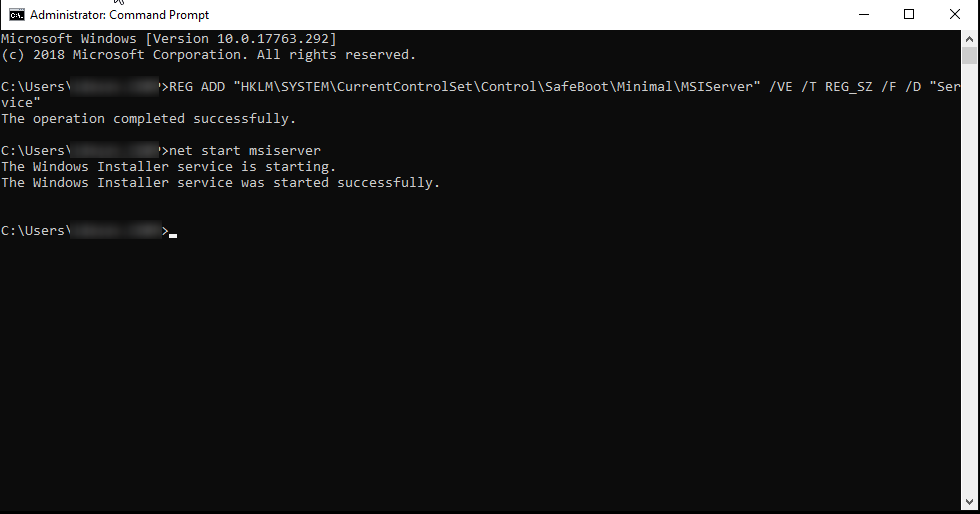
REG ADD "HKLM\SYSTEM\CurrentControlSet\Control\SafeBoot\Minimal\MSIServer" /VE /T REG_SZ /F /D "Service"
Then press Enter/return to execute the command. - Next, type in the following command:
net start msiserver
Then press Enter/return to execute the command.
The results of the execution of both commands will look like this:
- Close the Command Prompt. Press Ctrl+Alt on the keyboard to release the mouse cursor, then move the mouse cursor to the top.
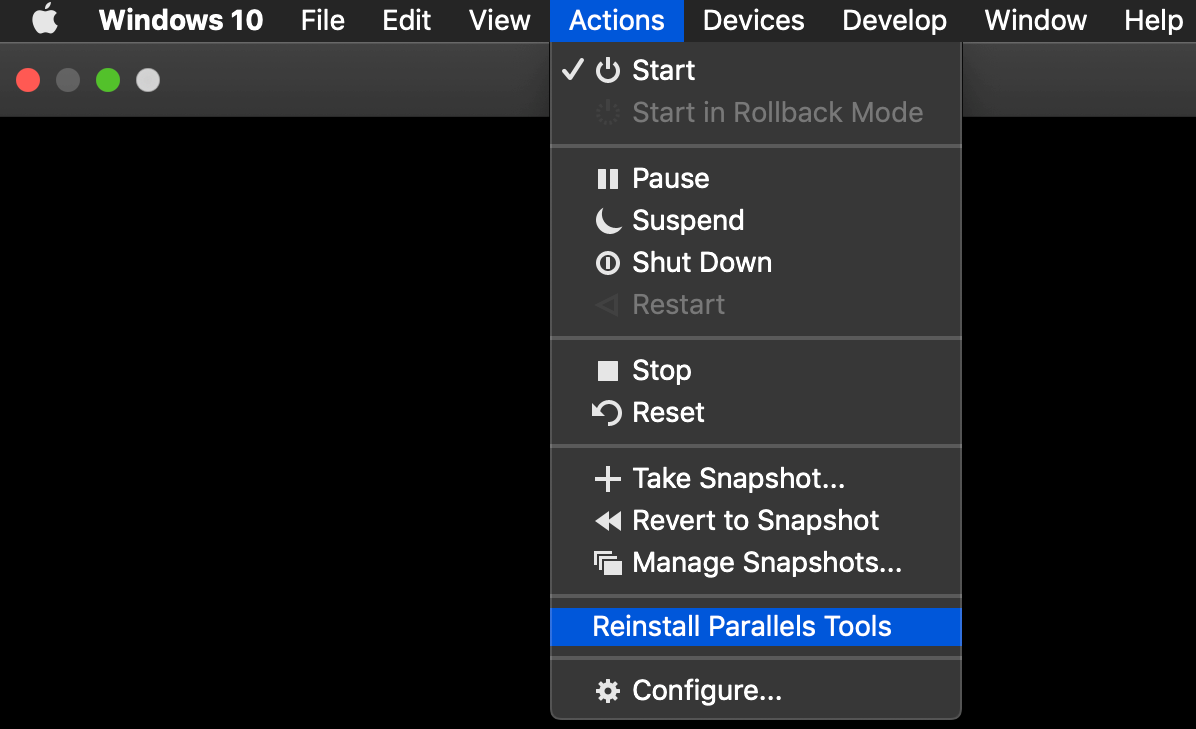
- Click Actions > Install Parallels Tools, once a pop up saying "Are you going to reinstall Parallels Tools" appears, click ’Yes’.

- Click File Explorer icon on the Windows taskbar or press CMD+E. In the appeared window select This PC item.
- Right-click on the DVD Drive (D:) Parallels Tools > Open
- Right-click PTAgent file and select Run as administrator. After the installation is over, restart Windows.
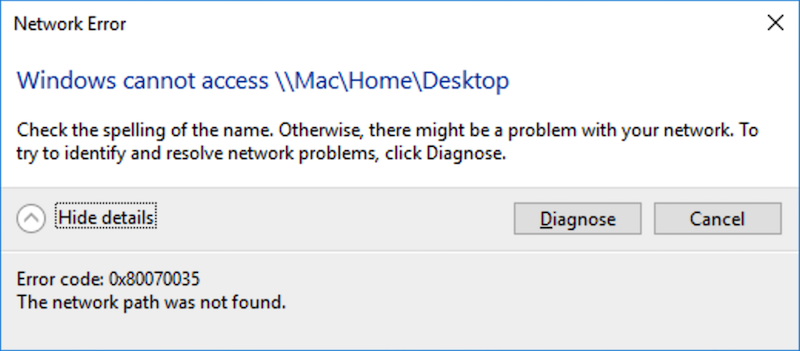
Note: while working in Safe Mode, multiple "Network Error" messages may appear. Simply click Cancel.
Was this article helpful?
Tell us how we can improve it.