
Symptoms
When playing games, working with some 3D graphic applications or using Microsoft Remote Desktop in Windows virtual machine running in my Mac, I notice that Ctrl, Alt, Cmd, Shift and other modifier keys fail to work properly.
Resolution
To solve the issue, you need to edit the modifier keys handling settings in your virtual machine configuration. To do this, follow these steps:
-
Open the configuration of your virtual machine:
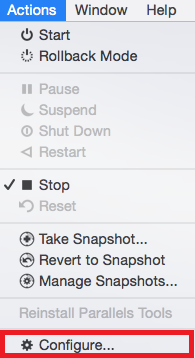
- In window mode: in Mac menu click on Actions > Configure
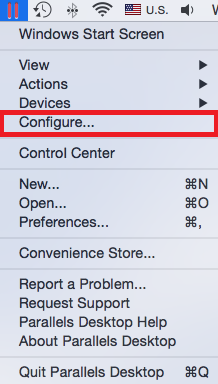
- In Coherence mode: click the Parallels tray icon in status bar > Configure...
- In window mode: in Mac menu click on Actions > Configure
-
Switch to the Hardware tab > Mouse & Keyboard.
-
Select Keyboard: Optimize for games:

Was this article helpful?
Tell us how we can improve it.