
This article explains how to add additional licenses to an existing Parallels subscription that was purchased through the Parallels online store.
If your subscription was obtained via a Parallels Sales representative or an authorized reseller, contact them to request additional licenses for your contract.
To purchase additional licenses in an existing subscription:
1. Open the Dashboard of your Parallels Account.
2. Click on Buy More Licenses under the product in question.
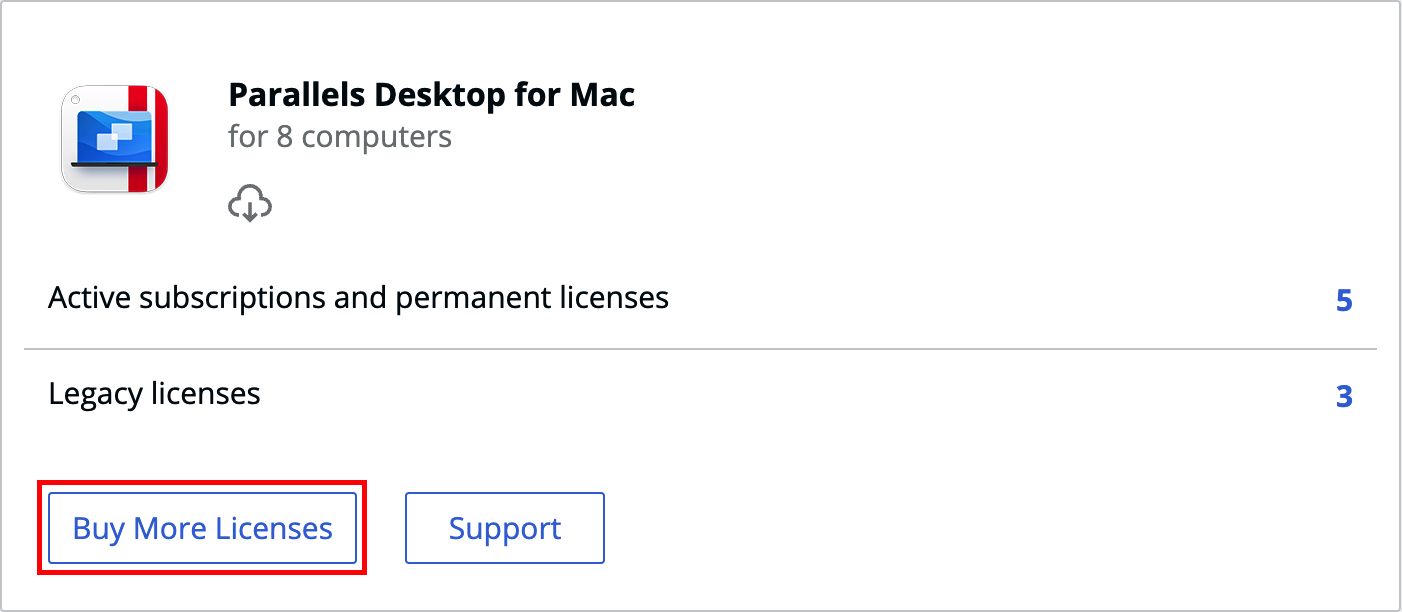
3. If you have multiple subscriptions, select the subscription that needs more licenses and click Next.
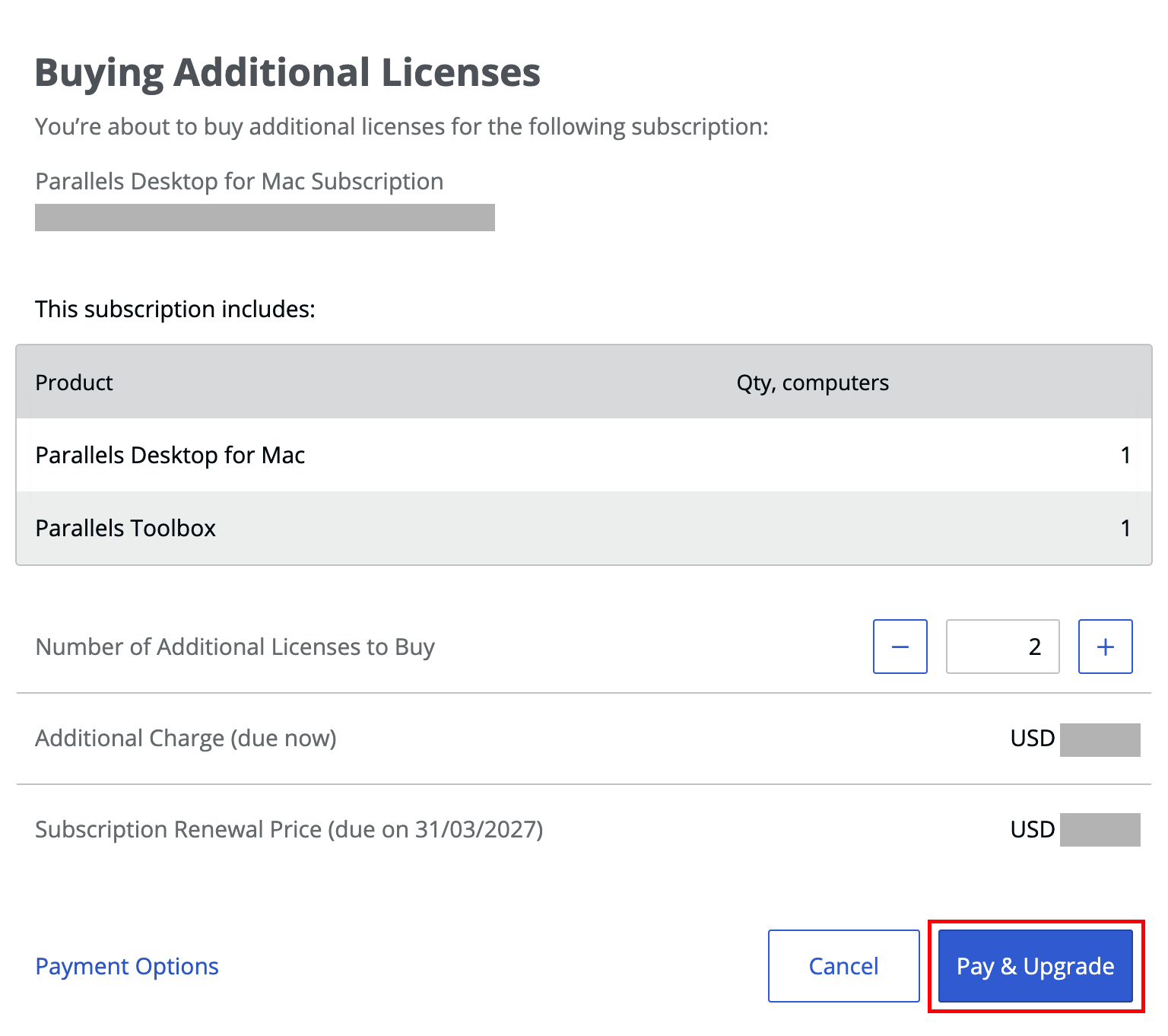
4. Specify the new number of product licenses in the subscription.
Note: When you specify a new total amount of the product licenses, you can see the additional charge for using the additional licenses in the current billing period, which is payable at the moment of upgrade, and the new total subscription amount (the renewal fee) based on the new number of license, which is due on the next renewal date.
5. When the new total number of product licenses in the subscription is set, click Pay & Upgrade.
If you choose to pay via PayPal or a Wire transfer, make sure to complete the payment transaction so you’re able to use the new licenses.
The new licenses will become available as soon as the payment system notifies Parallels that the transaction has completed.
Was this article helpful?
Tell us how we can improve it.