
For User Portal to obtain the IP address of a browser running a RAS RDP session, it needs a service that will inform the browser of its own IP. This is required because the technology does not provide a way to retrieve the IP address directly from the browser for RAS versions 20 and earlier.
Parallels RAS allows the administrator to configure the URL to this service.
Requirements
1. Any device between the browser and the service must inject the IP information into the X-Forwarded-For HTTP header.
CORS – Cross Origin Resource Sharing
2. Browsers have a security feature that requires a response header to be added to the API. The Secure Gateway calls an API on a different domain (for example, SG.domain1.com reaching out to IPAPI.domain1.com). Because the origin is different, CORS requires approval.
3. If the service does not include the appropriate CORS headers, the test will fail with the message: The client IP detection service CORS settings are invali
4. If this happens, please ensure that the service you are using can add Access-Control-Allow-Origin in the response header, with the value set to the Origin of the request. You can also set Access-Control-Allow-Origin to *.
5. For more information, please check https://en.wikipedia.org/wiki/Cross-origin_resource_sharing.
6. The service must return the IP of the client that called the service in JSON format. The expected JSON data is as follows:
{"ip": "141.8.30.169"}
7. There may be additional key-value pairs.
.
The recommended way to set up this setting is as follows:
- Open the Secure Gateway default site settings and navigate to the User Portal page.
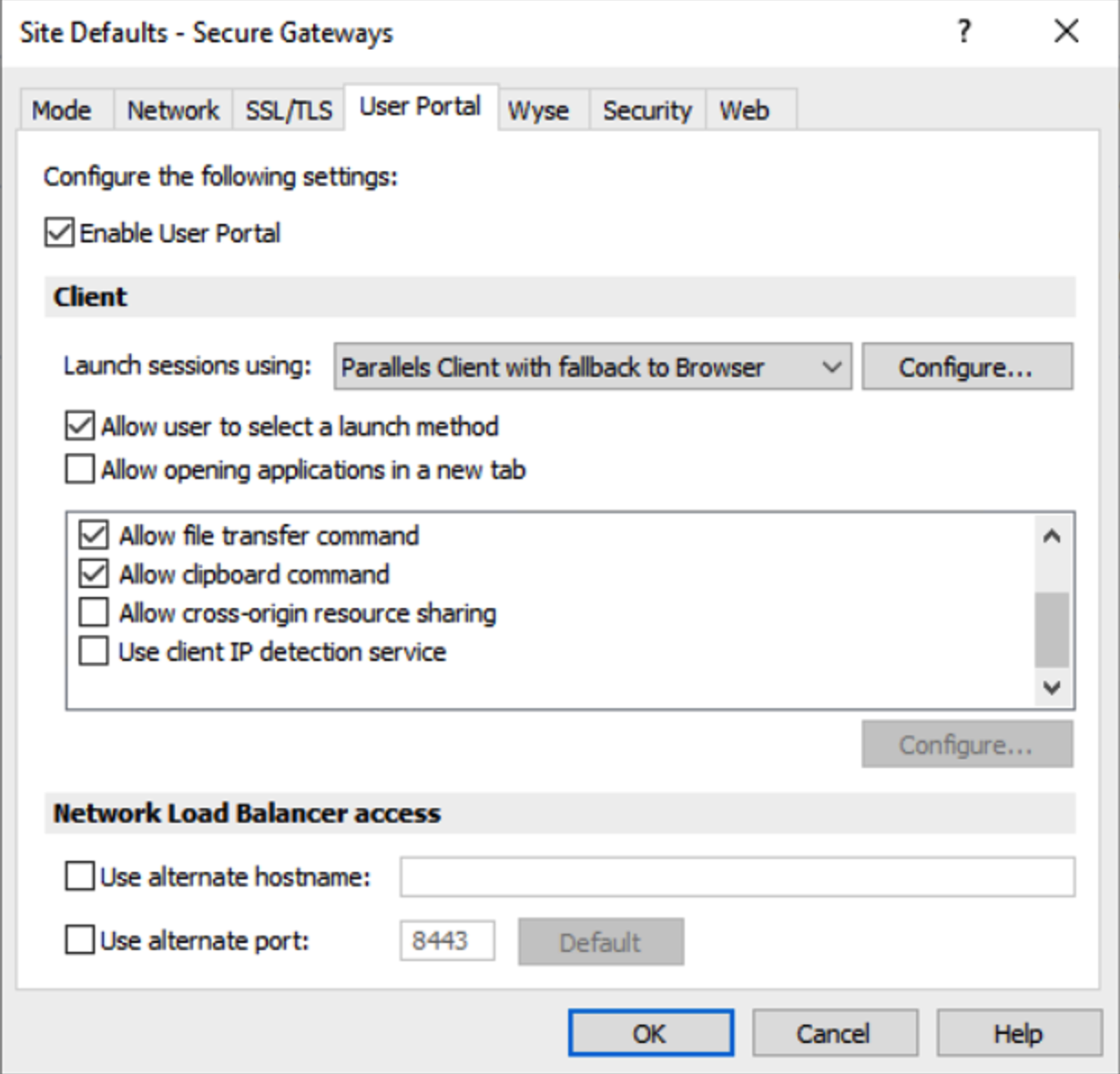
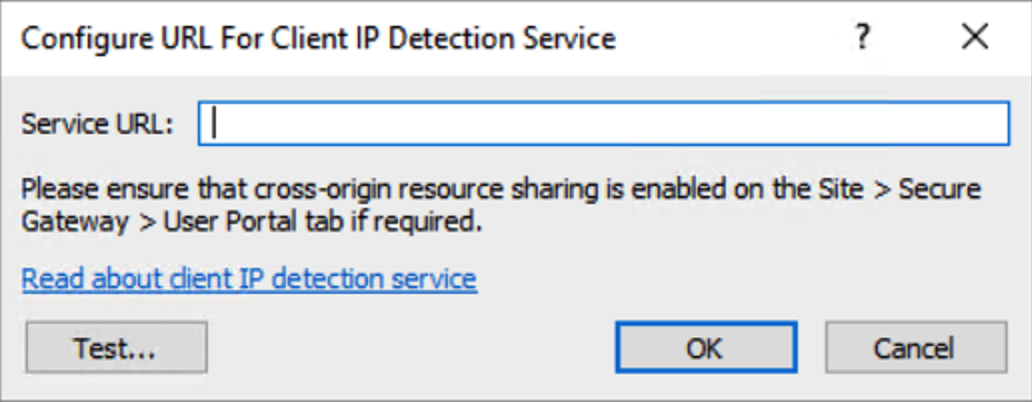
- Select and check “Use client IP detection service”. A window will appear where you need to configure the URL for the client IP detection.
Testing
1. Enter the URL (for example, https://ipapi.co/json/. This public service provides the public IP and can be used as an example).
2. Press the “Test” button to check that the API works as expected. When you use the "Test" button, the Connection Broker will take the role of the client and call the API. If successful, you will be presented with the following window.
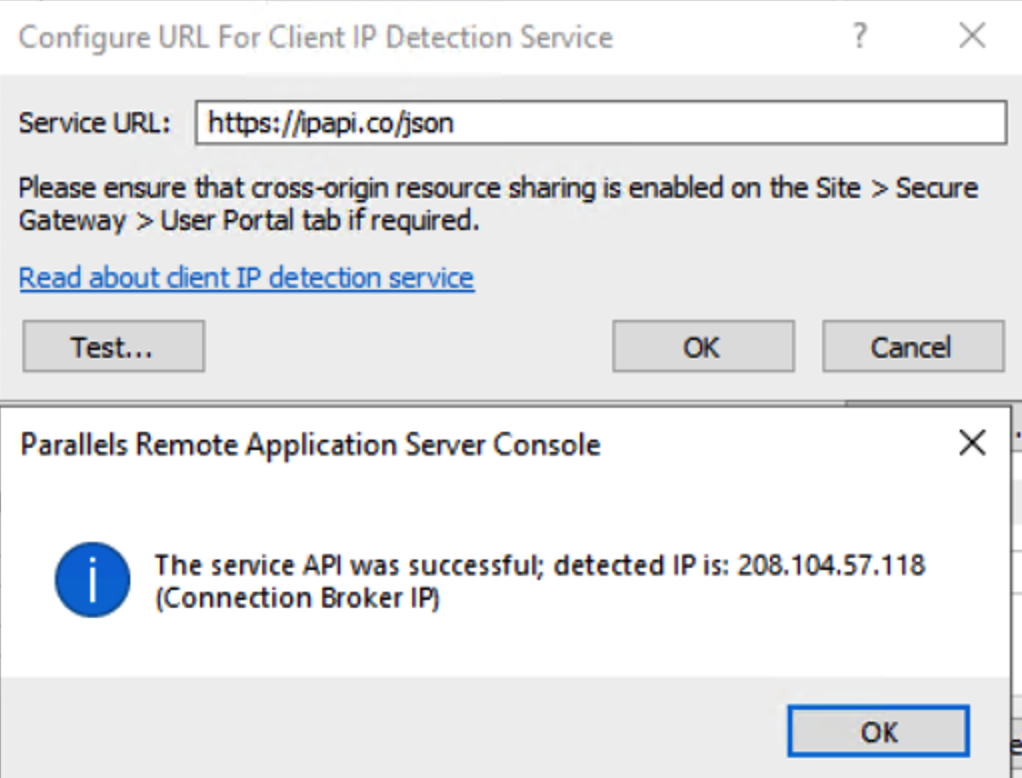
3. Press the Test button to verify that the API works as expected. When you use the Test button, the Connection Broker takes the role of the client and calls the API. If successful, you will see the expected confirmation window.
4. It is important that any device between the browser and the service injects the IP information into the X-Forwarded-For HTTP header.
Note: You can set one API per Gateway settings.
How to troubleshoot
Section A - Confirming that the API is working correctly using a public API
1. Use a service that you are sure returns a valid IP. We recommend using a service that will return your public IP.
2. In the configuration window, press the Test button. You will see a message box showing the public IP of the machine running the Connection Broker: The service API was successful; detected IP is: 213.46.126.155 (Connection Broker IP). You can confirm this by opening a public IP check site (for example, https://nordvpn.com/what-is-my-ip/nordvpn-site/) in a browser on the Connection Broker machine.
3. Apply the settings.
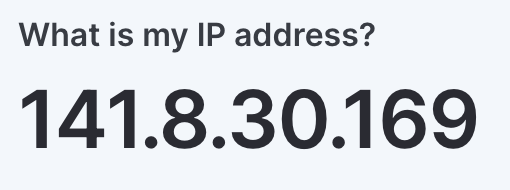
4. On an end-user machine, open any URL that shows your public IP (for example, https://nordvpn.com/what-is-my-ip/nordvpn-site/) and this IP address.
5. On the same end-user machine, Sign in to User Portal and open any published item.
6. In RAS Console, check the session information for the established session. Ensure that the IP displayed in Client Details matches the IP from Step 4.
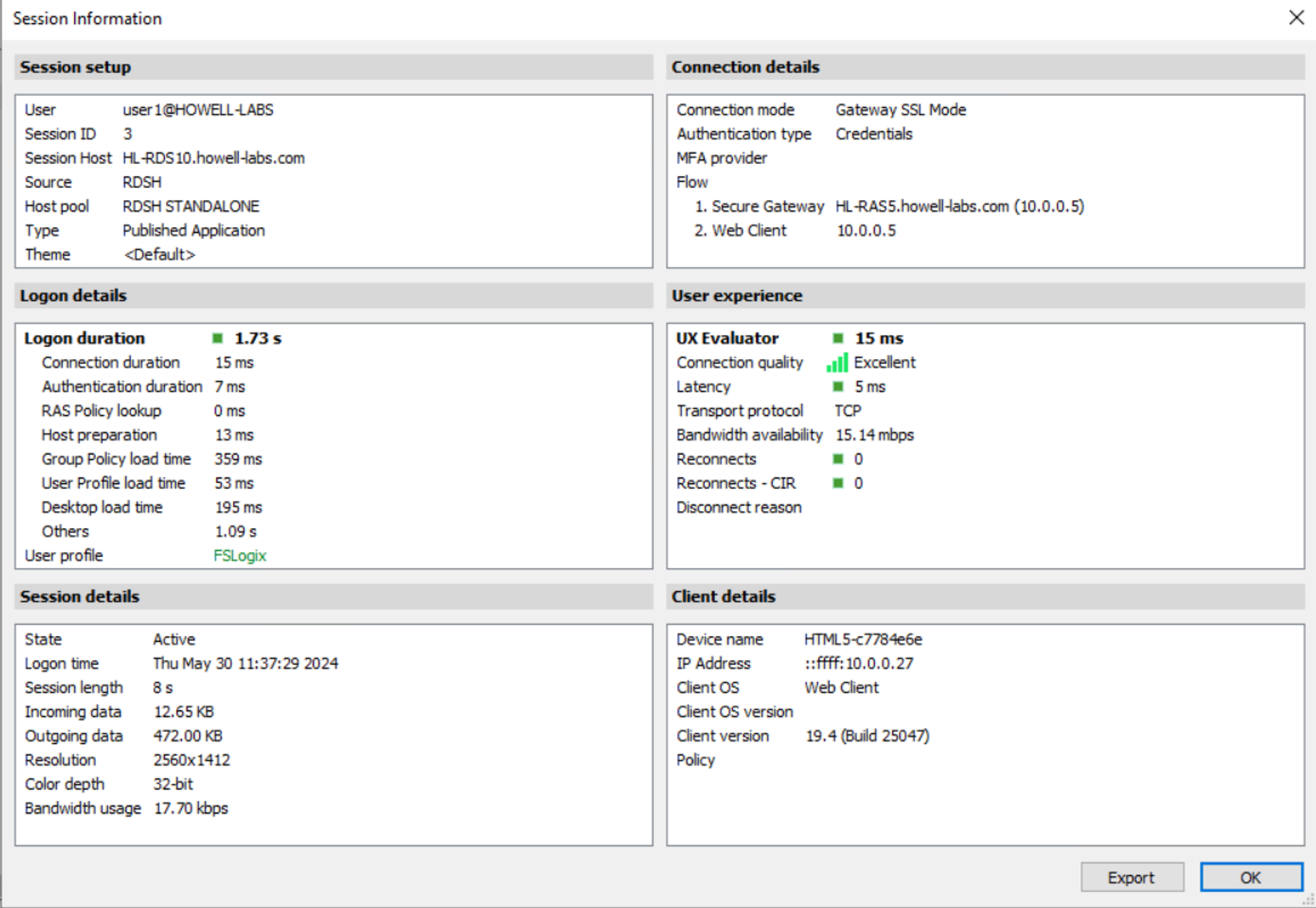
7. To confirm that the IP is also available within the session, please run GetRASVariable TUX_REMOTECLIENT_IP. Do note that these variables can be read from the registry:
- HKEY_CURRENT_USER\Software\Parallels\Shell\%SESSIONID%
- %SESSIONID% being the active session ID.
Section B - What to check if the API is not working correctly
1. To confirm that the configuration of the API provided to the Secure Gateway is set correctly, open the following file:
- C:\Program Files (x86)\Parallels\ApplicationServer\2XHTML5Gateway\config.ini
2. Look for “env_iplookupservice_url = “your getclient ip API”.
3. This confirms that User Portal will use the API to detect the client’s IP.
Section C - What to check if the API is not working correctly in User Portal
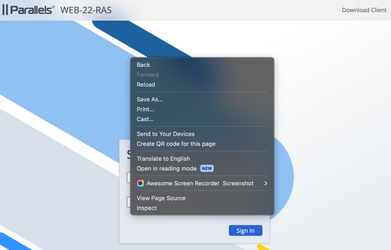
1. Open the User Portal in Chrome, click the right mouse button and select “Inspect”.
2. Start a published application.
3. In DevTools, select the Network tab and locate the request to the IP detection service.
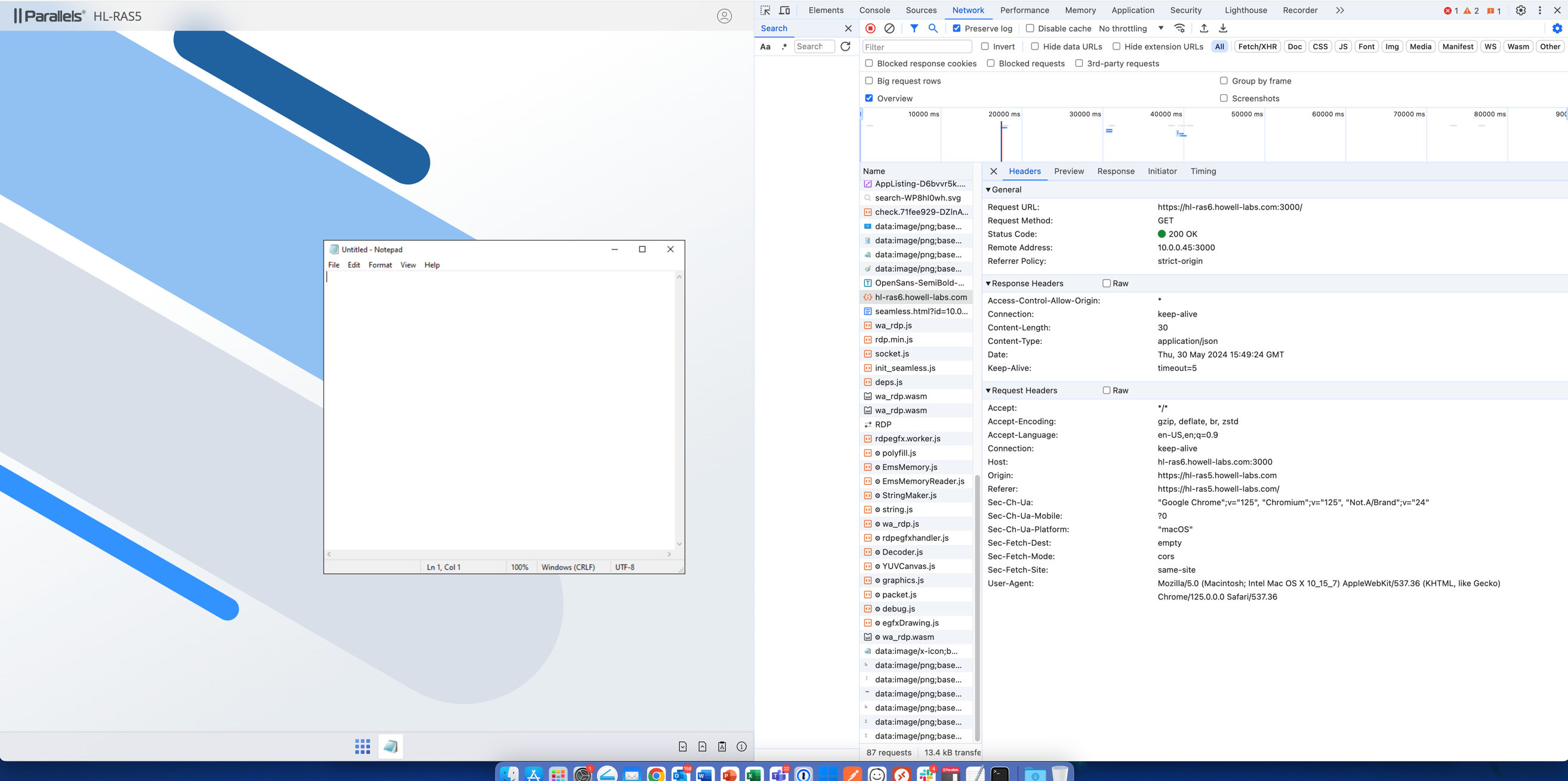
4. If everything is functioning correctly, you will see a response containing your IP.
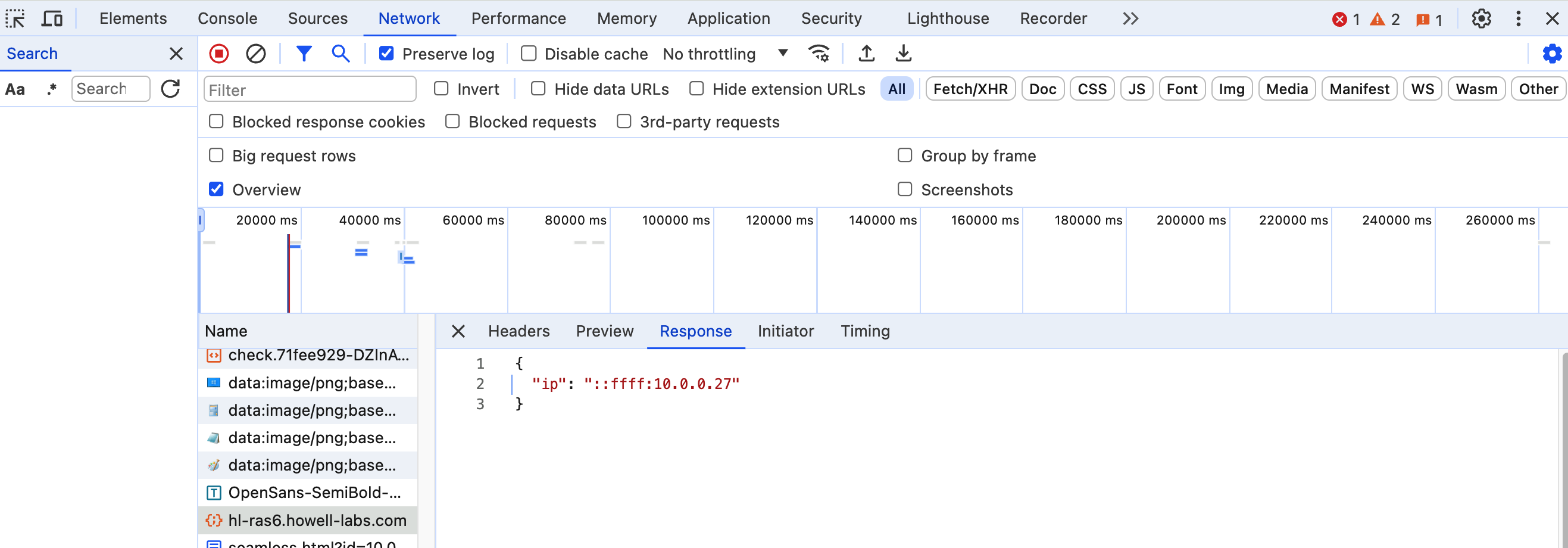
5. If there are issues, check the response status and the Console tab for errors.
Was this article helpful?
Tell us how we can improve it.