
If a virtual machine is stored in an iCloud‑synced folder, Parallels Desktop may get stuck on “Starting…”, hang on the loading screen, or close unexpectedly when launching the virtual machine. This commonly occurs when the virtual machine bundle (.pvm) is partially or fully stored in iCloud and not available locally. When you run a virtual machine that is located in a iCloud-synced folder, due to I/O disk operations virtual hard disk files are constantly being modified. Therefore iCloud will constantly try to upload the files, but will drop the upload once it detects that the files are changed. This leads to outbound network traffic waste.
By default, Parallels Desktop stores virtual machines in the ~/Documents/Parallels folder. When Desktop and Documents syncing is enabled for iCloud Drive, the virtual machine may be uploaded or offloaded by macOS, which can prevent the virtual machine from starting correctly.
To ensure reliable startup and performance, Parallels virtual machines should be stored in a local, non‑iCloud‑synced location.
Move Existing Virtual Machines Out of iCloud Drive (Recommended)
Method 1:
- Quit Parallels Desktop for Mac.
- Find your virtual machine in Finder as illustrated in KB 117333.
- Open another Finder window and create a local folder, for example:
/Users/<username>/Parallels - Drag the virtual machine bundle (
.pvm) to the new folder. - When the move is complete, double‑click the virtual machine bundle (.pvm) from its new location to register it in Parallels Desktop.
- To enable your iCloud synchronisation, you may refer to: Set up iCloud Drive on all your devices.
After moving the virtual machine, Parallels Desktop will no longer attempt to load it from iCloud.
Method 2:
If the virtual machine must remain in an iCloud‑synced folder, make sure the entire virtual machine bundle is downloaded locally before starting it. This can help in situations where Parallels Desktop is stuck at “Starting…”, hangs on the loading screen, or closes unexpectedly.
- Quit Parallels Desktop.
- Open Terminal.
- Run the following command, replacing the path with the actual path to your VM bundle:
brctl download "<path to VM bundle>.pvm"
For e.gbrctl download "~/Documents/Parallels/Windows 11.pvm"
- Wait for the download to complete.
- Double‑click on the downloaded virtual machine bundle (.pvm) to register it in Parallels Desktop and start it.
Changing the Default Location for New Virtual Machines
To prevent newly created virtual machines from being stored in iCloud Drive:
- Open Parallels Desktop.
- On Mac Menu bar, click on Parallels Desktop → Preferences → General.
- Set the default virtual machine location to a local folder (for example,
/Users/<username>/Parallels).
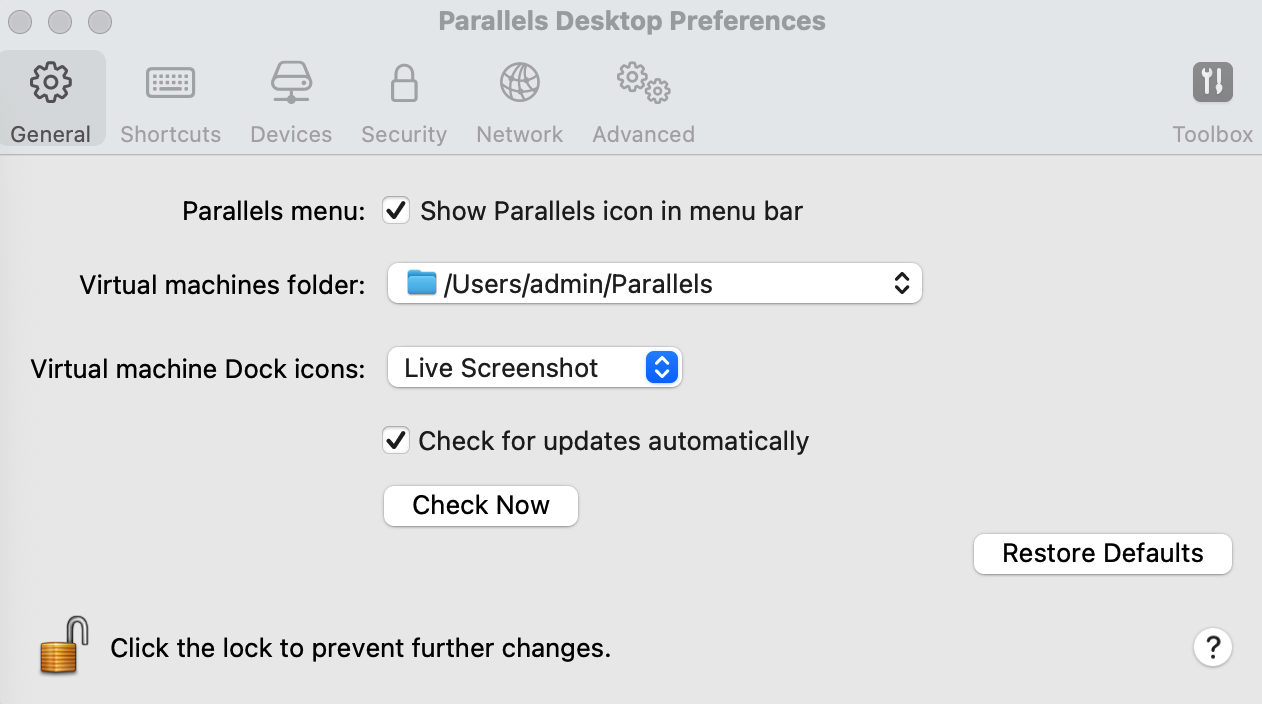
NOTE: For the new users who install Parallels Desktop 12 for Mac on macOS 10.12 Sierra the default folder for virtual machines will be /users/username/Parallels/.
Was this article helpful?
Tell us how we can improve it.