
Description
The Shared Clipboard feature is provided by the Clipboard Synchronization Tool** included in Parallels Tools. It enables you to easily exchange texts between:
- Different virtual machines irrespective of the guest OS installed.
- A virtual machine and your Mac.
To copy and paste, use the standard procedure for the current OS. For example, to copy text in the Windows guest OS, select the text, and press Ctrl+C. You can also use native OS X Cmd+C shortcut.
To paste this text in Mac OS X, press Cmd+V, or select Paste from the shortcut menu.
For closer integration between Mac OS X and your Windows guest OS, Parallels Desktop provides the possibility to copy and paste formatted text, pictures and drag and drop files between Mac OS X and the virtual machine operating system.
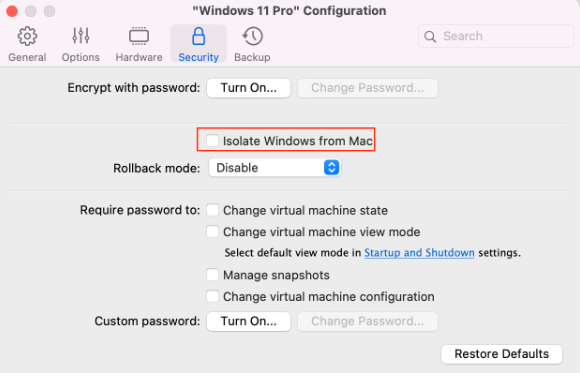
NOTE: To use these functionalities, you should have Parallels Tools installed in the Virtual Machine and the Isolate Mac from Windows option disabled in the Security Pane
Copying and Pasting Formatted Text
When you work with your Mac and Windows-based virtual machines side by side, you may need to copy and paste text between them.
Parallels Desktop allows you to copy and paste text of any size between Mac and Windows applications. This text can be italic/bold/underlined, it can be of various colors/fonts/sizes and may contain spaces.
You can copy and paste text from:
- Mac OS X applications to the virtual machine applications (Word, Excel, Outlook, Notepad, Wordpad, etc)
- The virtual machine applications to Mac OS X applications (TextEdit, Safari, Mozilla Firefox, MS Office for Mac, etc)
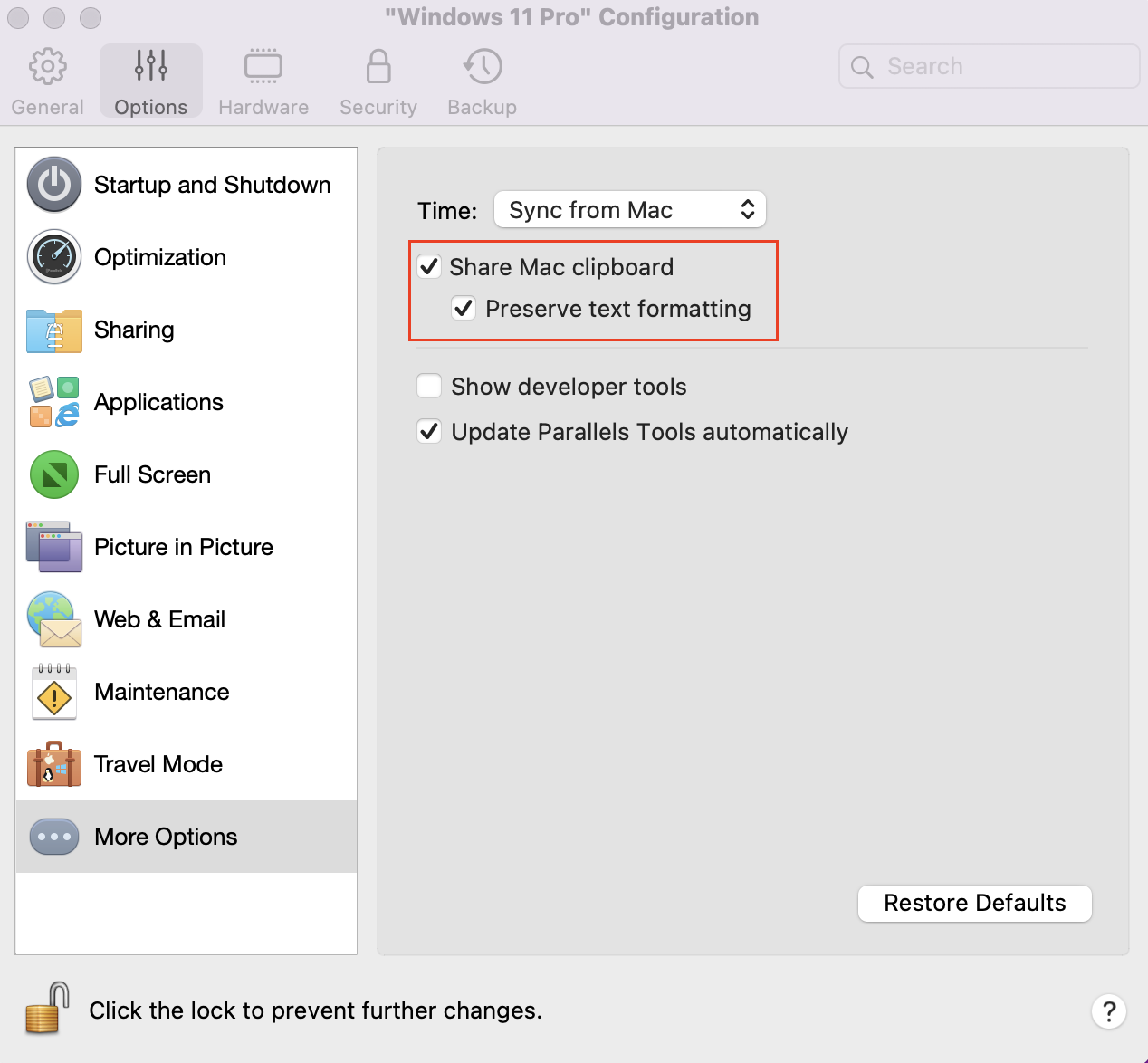
To allow the above functionality, you need to make sure that "Share Mac clipboard" option is checked (Options pane > More Options ) as shown below :
Copying and Pasting Pictures
When you work with your Mac and virtual machines side by side, you may need to copy and paste different pictures between them.
Parallels Desktop allows you to copy and paste pictures between Mac and Windows picture or graphic editors.
Dragging and Dropping Files
Close integration of Mac and Windows-based virtual machines allows you to drag and drop different files between them. To drag and drop file, you should 'grab' it (by left-clicking and holding), drag it to a different location and drop it.
Note: If you are using virtual machine in the Full Screen mode, you should either exit Full Screen or enter Coherence (in Parallels Desktop menu bar > View).
You can also watch the videos about copy and paste and drag and drop features:
Was this article helpful?
Tell us how we can improve it.