
What is Coherence?
Note: Coherence mode in Linux virtual machines is no longer supported.
Coherence is a view mode that allows you to run Windows applications on your Mac, as though they were native Mac applications.
In Coherence mode, you can use both your Windows and Mac applications at the same time without managing two separate desktops or rebooting.
You can even load Windows applications directly from your Mac Dock or Mac desktop. In this mode, all Parallels Desktop controls, icons, and menus are hidden, except for the Parallels icon in the Mac menu bar and the Windows Applications folder in the Dock.
Additionally, due to its nature, Coherence mode completely disables Windows screen saver instead, Mac screen saver is being used.
Windows Start button and Desktop are hidden in Coherence mode.
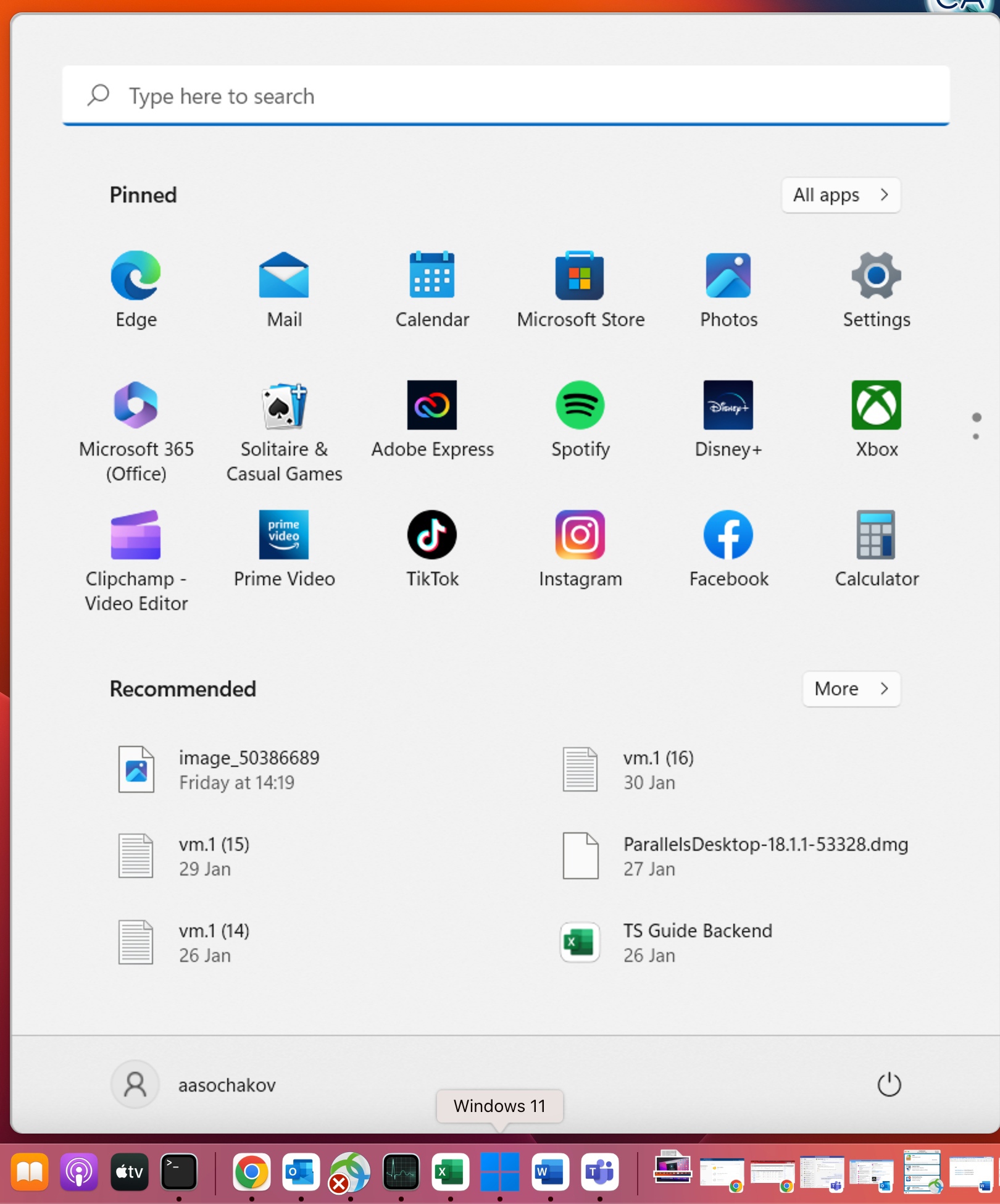
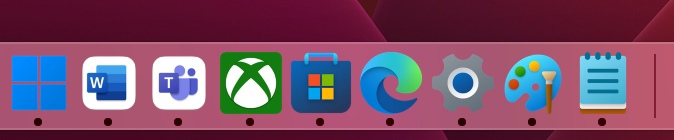
- Windows Start menu is available by clicking on the Windows Dock icon:
Toggle Coherence mode
Enter Coherence
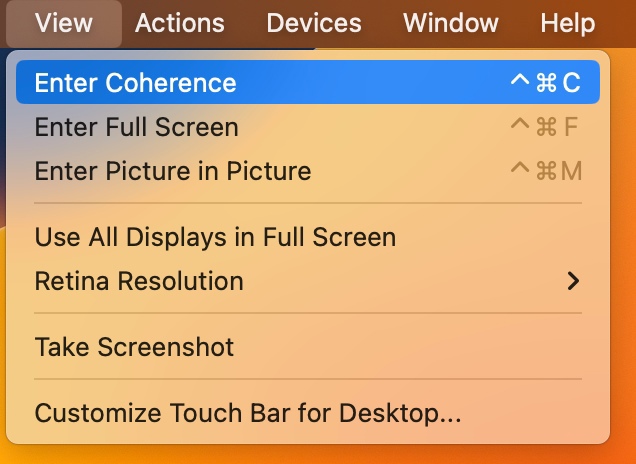
- When Windows is in Windowed view mode, click on View menu > Enter Coherence:
- Click on the Coherence icon (blue circle) in the top left corner of the virtual machine window:

- When a virtual machine runs in Full Screen mode, it's required to exit Full Screen mode first and then enter Coherence:
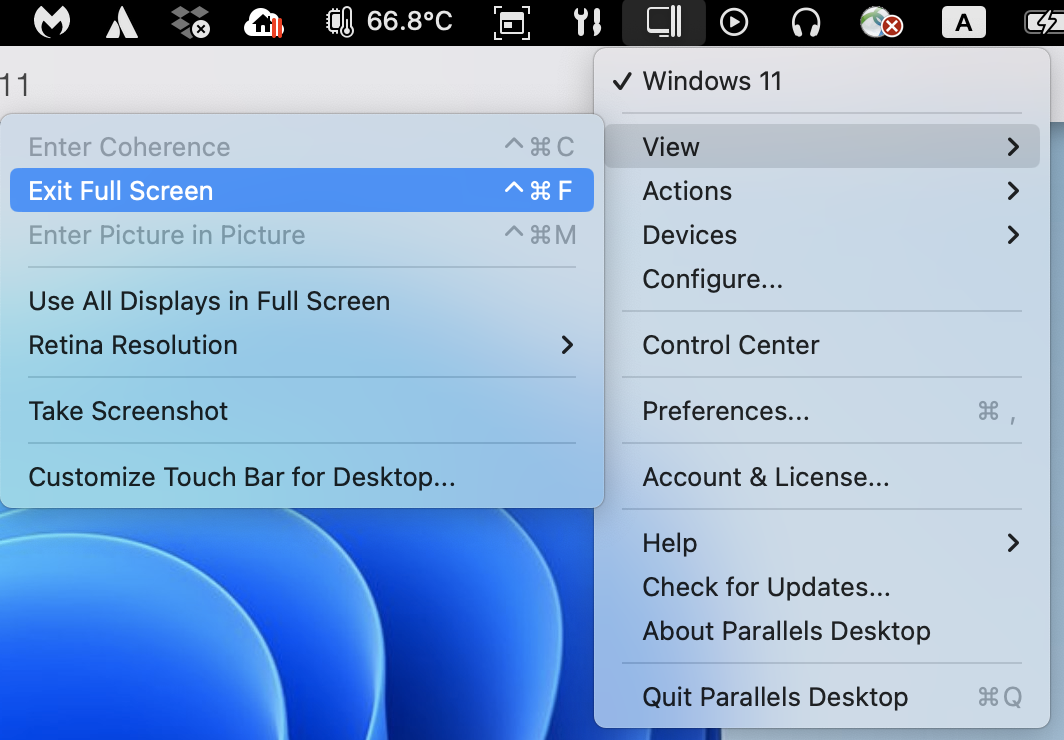
- Move the mouse cursor to the upper edge of the screen and click the View menu > Exit Full Screen.
- Switch to the Mac side by swiping with three fingers or using Mission Control shortcuts, click on the Parallels icon in the Mac menu bar and select View > Exit Full Screen.
Exit Coherence
- Click on the Parallels icon in the Mac menu bar and select View > Exit Coherence.
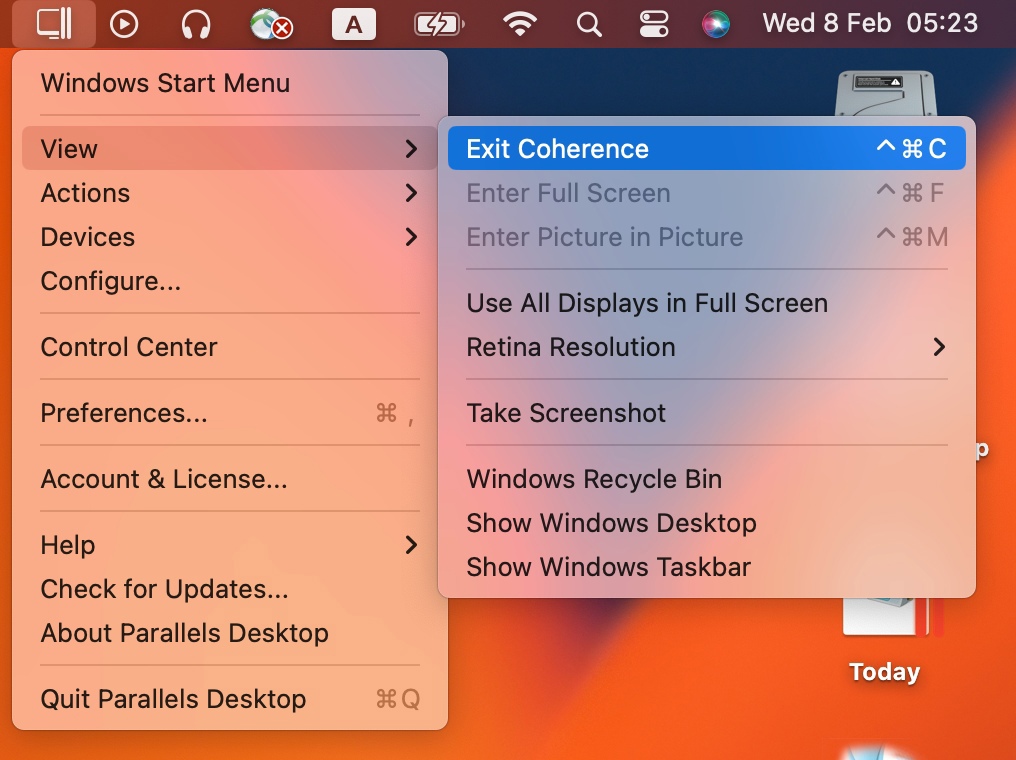
- Or right-click on the Windows icon in the Dock and select View > Exit Coherence.
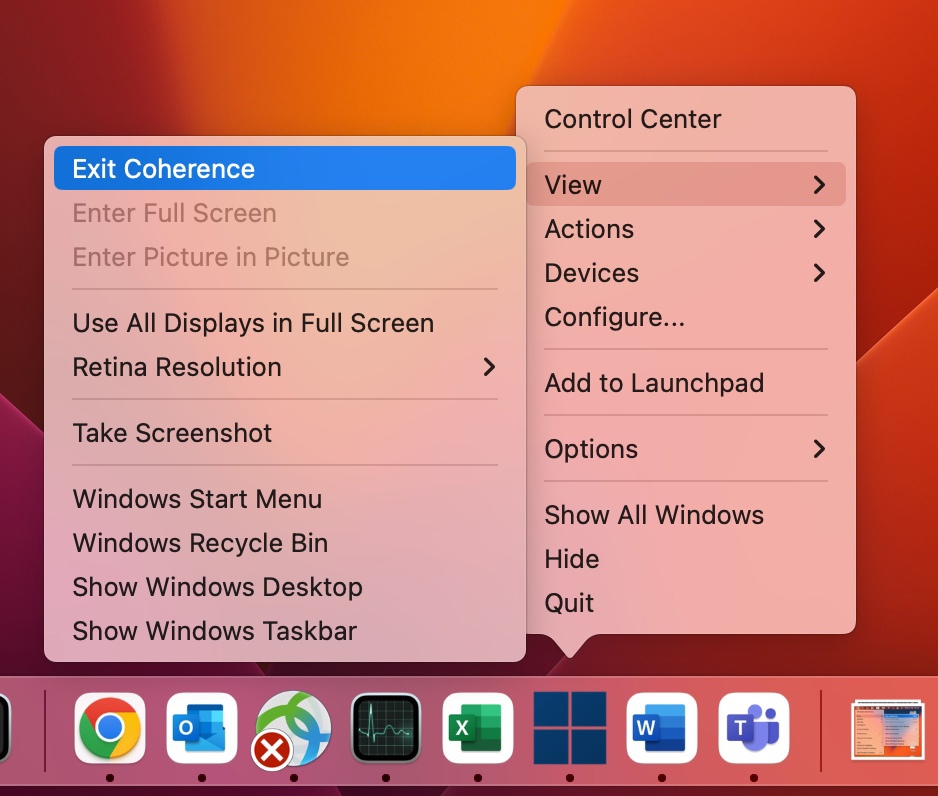
Working with a virtual machine in Coherence
Start Windows application
- Click on the Windows Applications Folder in the Dock and choose the application you need:
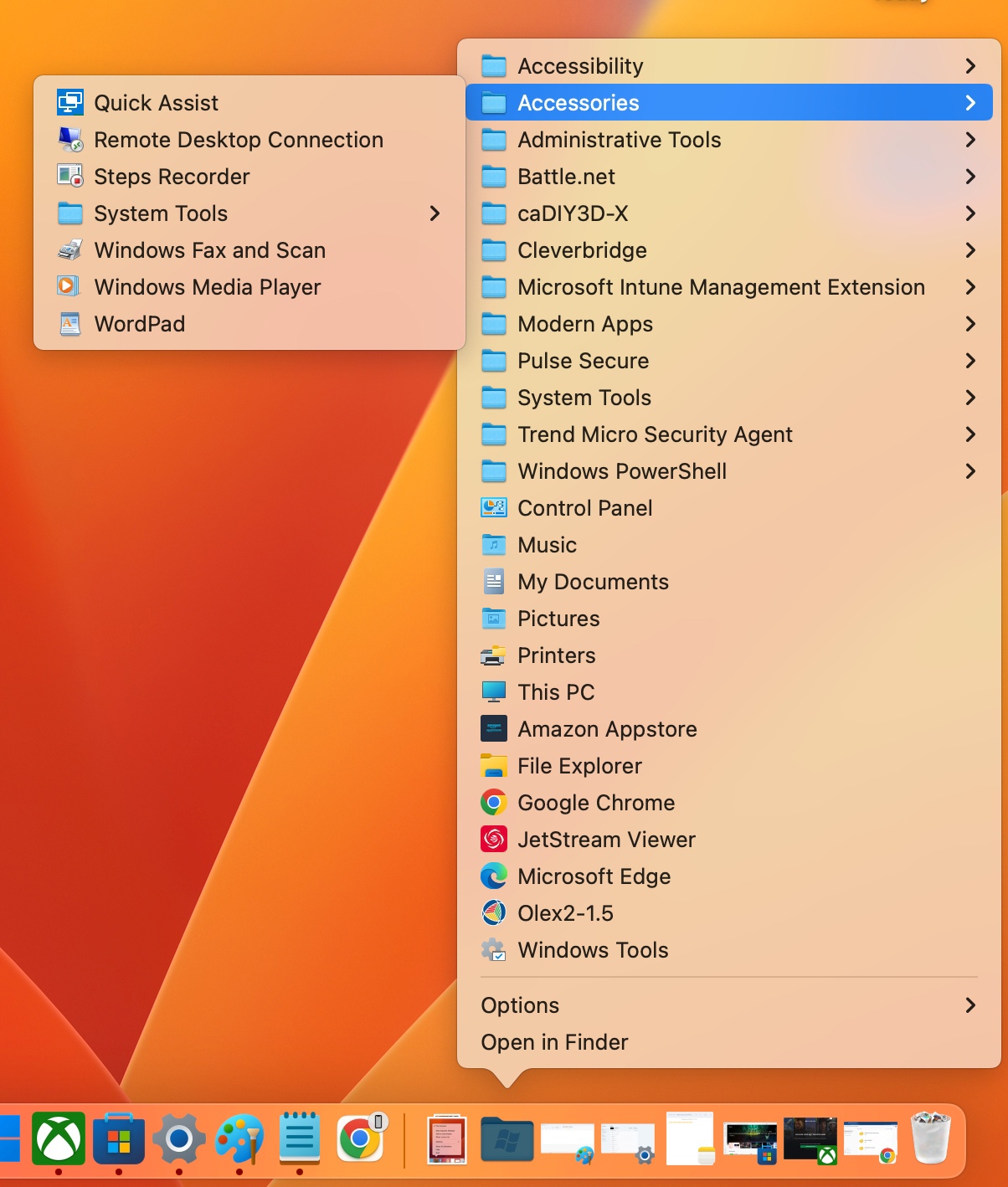
Open Windows Start menu
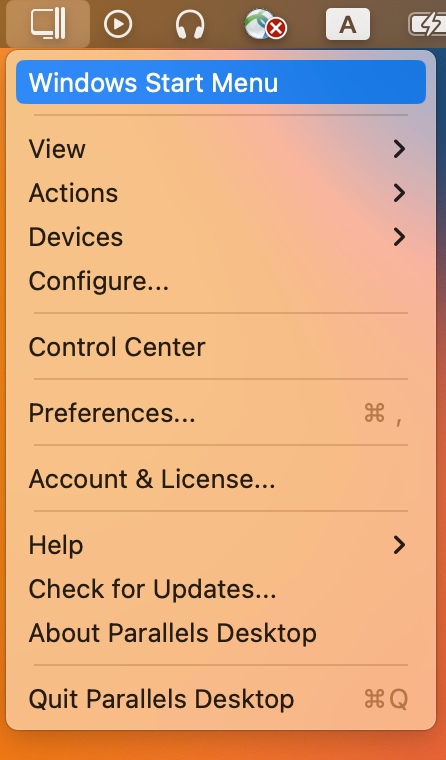
- Click on the Parallels icon in the Mac status bar and select Windows Start menu:
- Click on the Windows icon in the Dock:
Switch between open Windows applications
- Click on the application icon in the Mac Dock:
Additional options for Windows applications
- Additional options are available by right-clicking on their Dock icons:
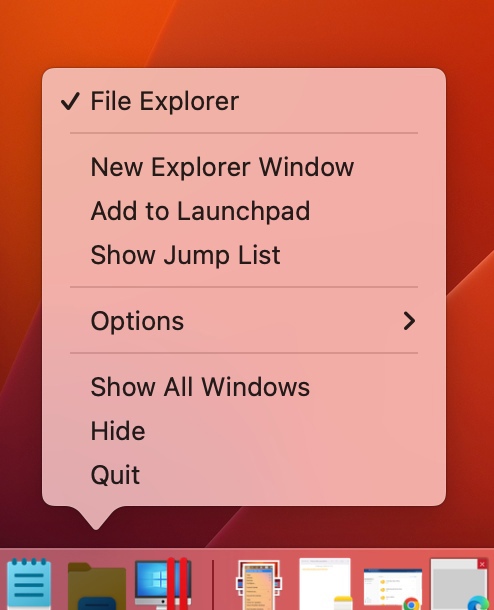
To access the virtual machine configuration:
- New item menu allows to open a new application window/mail/document, etc., depending on application functionality.
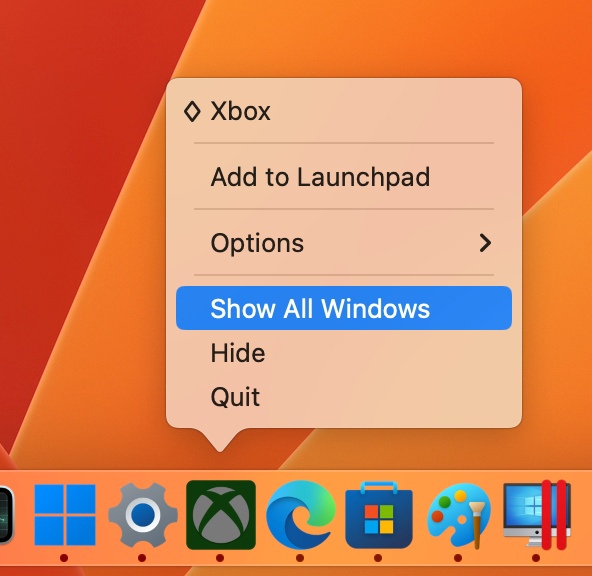
- Quit, Hide, Show All Windows, Options, and Add to Launchpad are the same as for native Mac applications.
- Options allow to assign certain actions per-application basis, such as Keep Mac Awake, Always Hide Others, Do Not Disturb, Use in Full Screen.
If you have several windows of the same Windows application open, you may switch between them in Mac:
- By using the Show All Windows option:
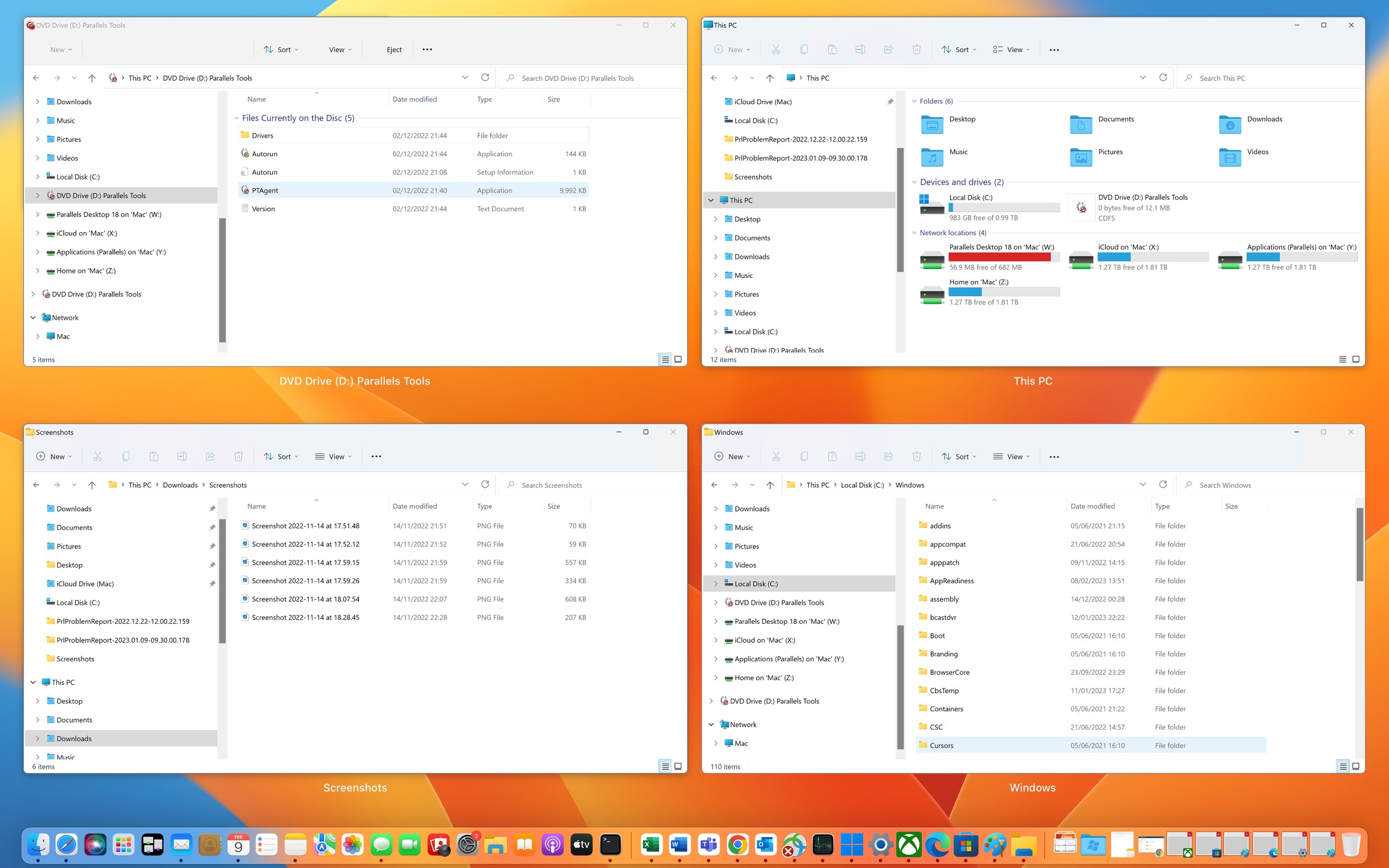
- By selecting from the corresponding list by right-clicking on the application icon in the Dock:
- Either right-click on the Windows icon in the Dock and select Configure...:
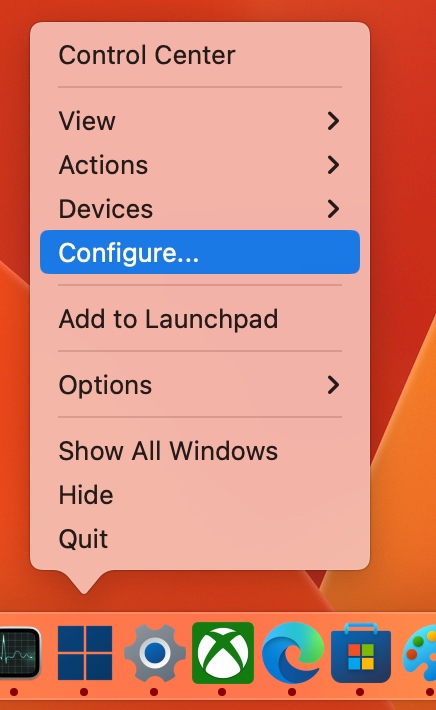
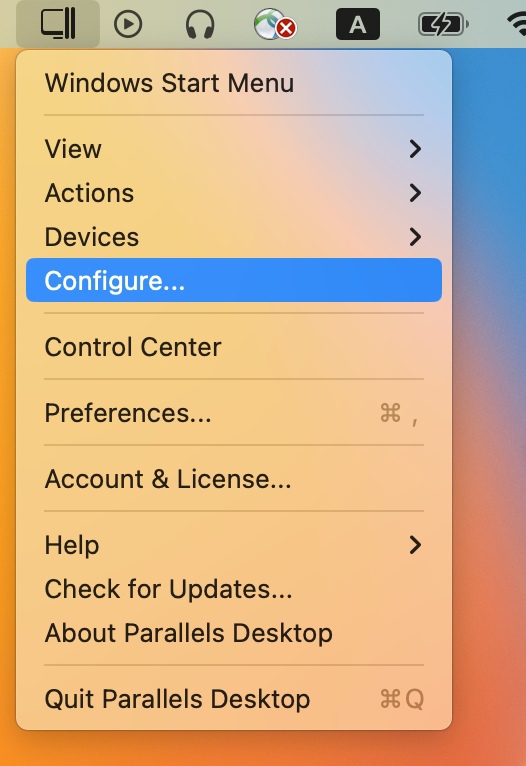
- Or click on the Parallels tray icon in the Mac status bar and select Configure...
Settings
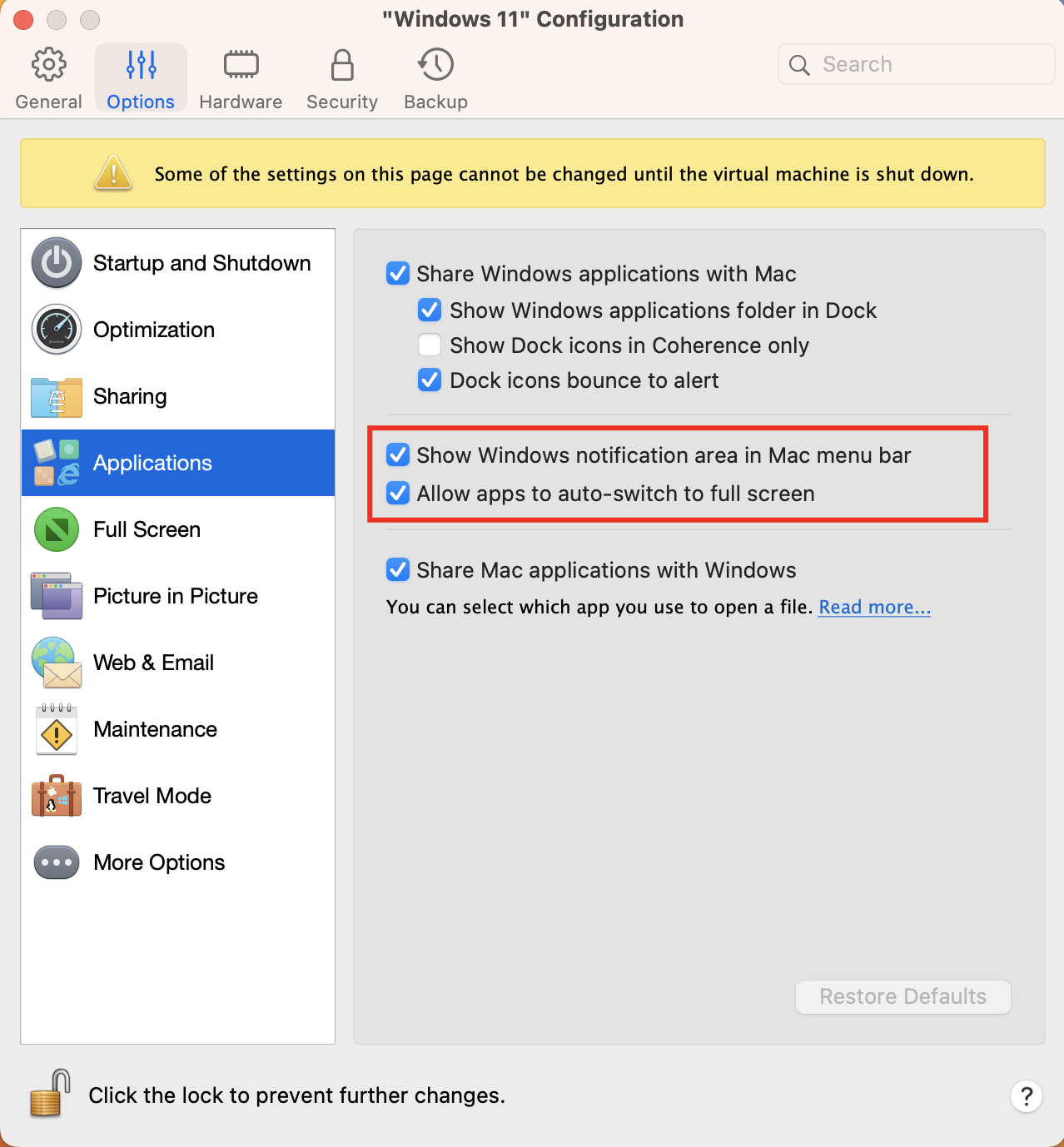
The settings for Coherence mode are available in virtual machine configuration > Options > Applications.
Note: To be able to use Coherence mode, Parallels Tools should be installed. Check KB 115835 for more details.
To learn more about how Coherence work, we also recommend visiting this blog post: Coherence - It’s a Kind of Magic!
Was this article helpful?
Tell us how we can improve it.