
Information
Which Windows virtual machines can be upgraded to Windows 8.1?
Important: This article describes how to upgrade an existing Windows virtual machine to Windows 8.1; if you want to install Windows 8 from scratch, please see: KB 4729.
You can upgrade to Windows 8.1 from Windows 8, Windows 7, Windows Vista, or Windows XP, but depending on which operating system you're upgrading from, you might not be able to keep all of your files, applications and settings.
The following table shows what you have the option of keeping during an upgrade:
| When upgrading from | You can keep |
| Windows 7 | Personal files. You'll need to reinstall your programs after you upgrade to Windows 8.1 |
| Windows Vista | Nothing. You won't be able to keep any files, settings, or programs when you upgrade to Windows 8.1. Make sure to backup your data prior to upgrading. |
| Windows XP | Nothing. You won't be able to keep any files, settings, or programs when you upgrade to Windows 8.1. Make sure to backup your data prior to upgrading. |
| Windows 8 | Your files, desktop apps, user accounts, and settings come with you. |
Important: If you create installation media to install Windows 8.1, and then start your virtual machine from that media and install Windows 8.1, you won't be able to keep your previous files, programs, or settings. To keep files, programs, or settings you must install Windows 8.1 by starting the installation from within your current version of Windows.
What should I do before upgrading my virtual machine to Windows 8/8.1?
- Make sure you're using the latest version of Parallels Desktop. Go to Parallels Desktop menu > Check for Updates, and if a new update is available, follow the onscreen instructions to install it.
- It is strongly recommended that you backup your virtual machine before upgrading to Windows 8/8.1. See KB 4859 to learn about backup options. How to backup virtual machines http://kb.parallels.com/4859
- Switch your virtual machine to the Windowed View Mode. If your virtual machine is running in Coherence mode, simply right-click the Windows Start menu icon and choose Exit Coherence, or click on the Parallels icon in the menu bar at the top of the screen
 and choose Exit Coherence.
My virtual machine is ready to be upgraded. What should I do next?
-
Get Windows 8/8.1. from Microsoft.
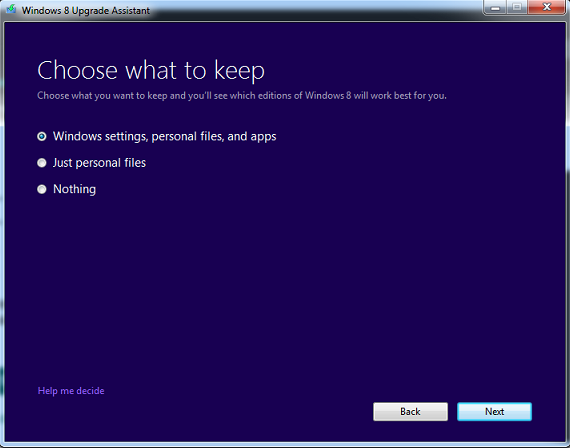
- Run the downloaded file and follow the onscreen instructions. On the first screen, choose whether you want to keep your Windows settings, personal files, and apps. All options might not be available; see the compatibility table at the beginning of this article.
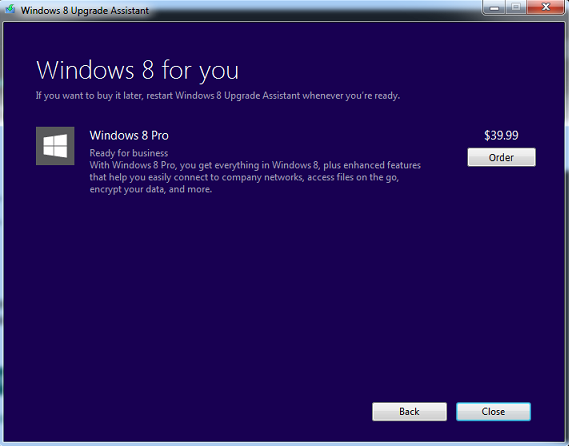
- The next screen lets you buy Windows 8/8.1:
-
You see your Windows 8/8.1 product key on the next screen. It is also sent to your email. Click Next to proceed to the download.
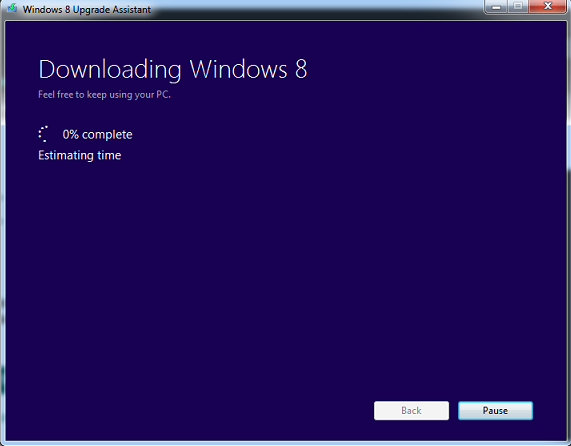
- Wait as Windows 8/8.1 is downloaded.
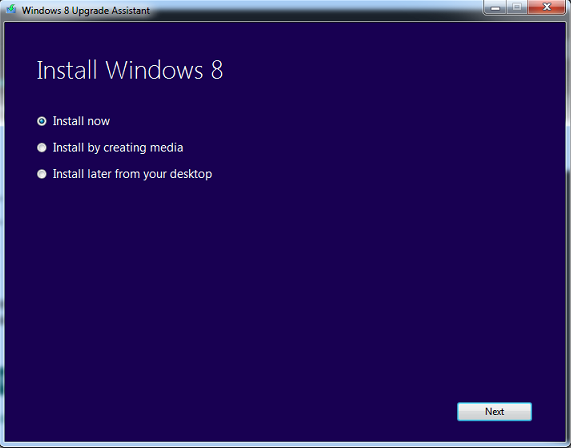
- On the next screen, you're given three options to install Windows 8/8.1: Install Now, Install by creating media, and Install later from your desktop. If you want to save your applications, be sure to choose Install now. Choosing Install by creating media will not give you an opportunity to keep files, programs and applications.
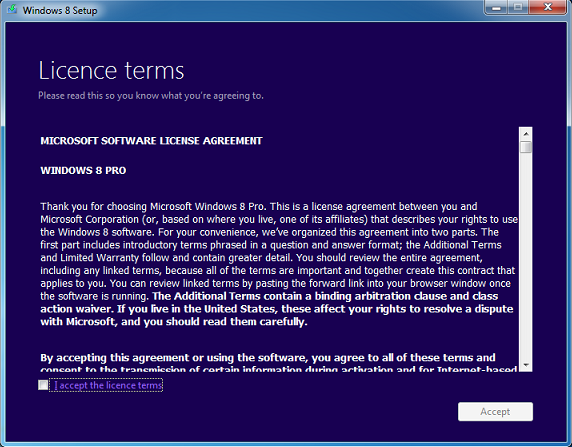
- On the next screen, accept the Microsoft Software License Agreement:
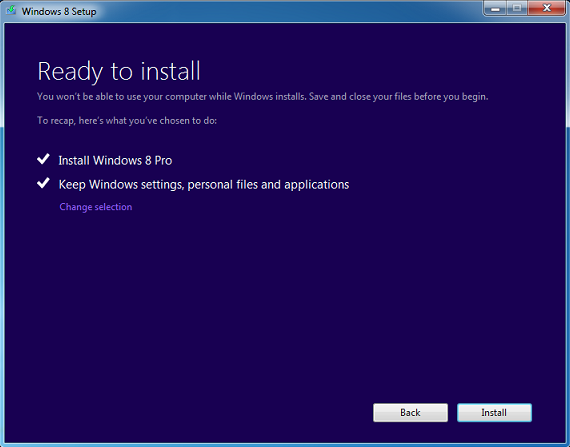
- Click Install.
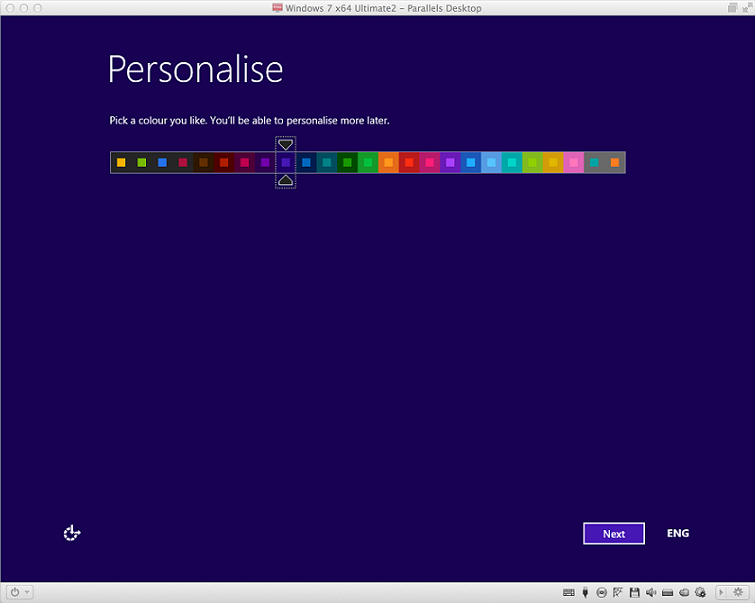
- You're almost there. Personalize Windows 8/8.1 on the next screen. If you don't see the Personalization screen below, your Windows 8/8.1 virtual machine is in Coherence mode. You may switch it to the Windows view mode by right-clicking the Windows Start menu icon and choosing Exit Coherence or by clicking the Parallels icon in the menu bar at the top of the screen and choosing Exit Coherence.
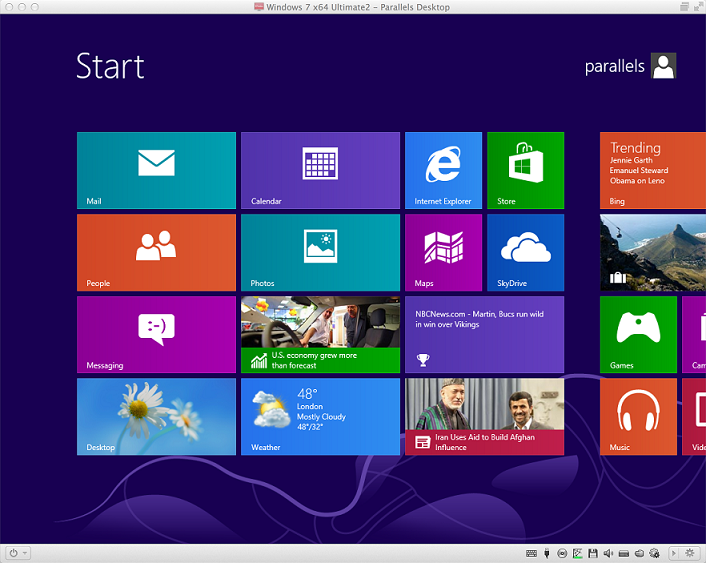
- And now your Windows 8/8.1 virtual machine is ready for use! Don't forget to install Parallels Tools if your Windows programs were not transfered during the Windows 8/8.1 upgrade. (Click Virtual Machine menu > Install Parallels Tools)
Was this article helpful?
Tell us how we can improve it.