
Note: this article only applies to Intel-based Mac computers, as the Boot Camp® feature is currently not available on Mac computers with M1 chip.
Symptoms
Windows Virtual Machine installed from Boot Camp partition shows that it is not genuine and ask for activation.
Cause
Windows operating system detects the hardware change and presumes it to be installed on a different machine. Virtual hardware is different from the real hardware (where Boot Camp is installed) and can cause such confusion for software.
Resolution
-
Activate Windows in Virtual Machine and restart Windows. Make sure Windows is activated in Virtual Machine.
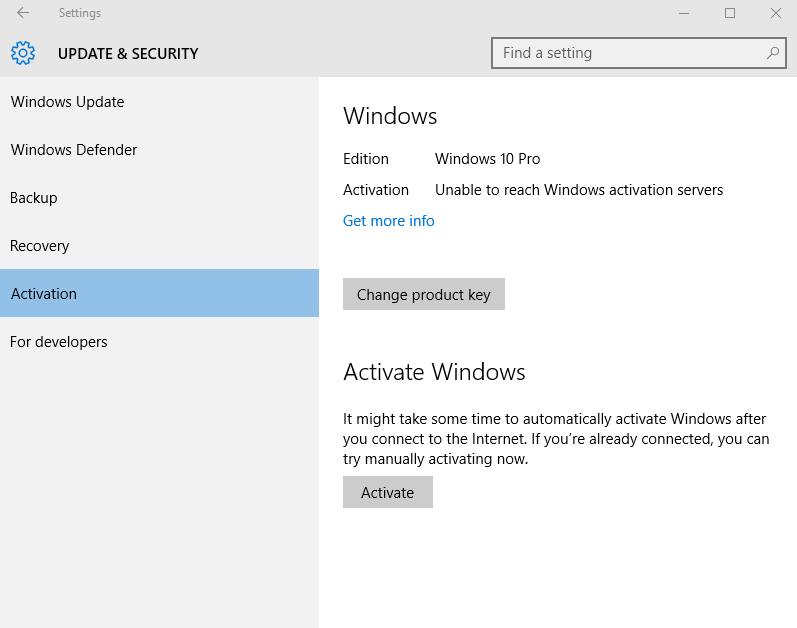
- Restart your Mac and boot to Boot Camp directly. Go to Settings -> Update & Security -> Activation -> click on Activate button.
If it cannot be activated online - call Microsoft and activate Windows by phone, please tell Microsoft Support you have changes the hardware and need to reactivate Windows installed on your drive . Microsoft should not require using a separate Windows license key for a virtual machine based on Boot Camp partition. Reboot Windows in Boot Camp and make sure Windows is activated.
This solution will prevent the reactivation request in Bootcamp and in the virtual machine.
NOTE: If your virtual machine is not based on the Boot Camp Windows partition, please refer to the KB 113879.
Was this article helpful?
Tell us how we can improve it.