
RESOLUTION
-
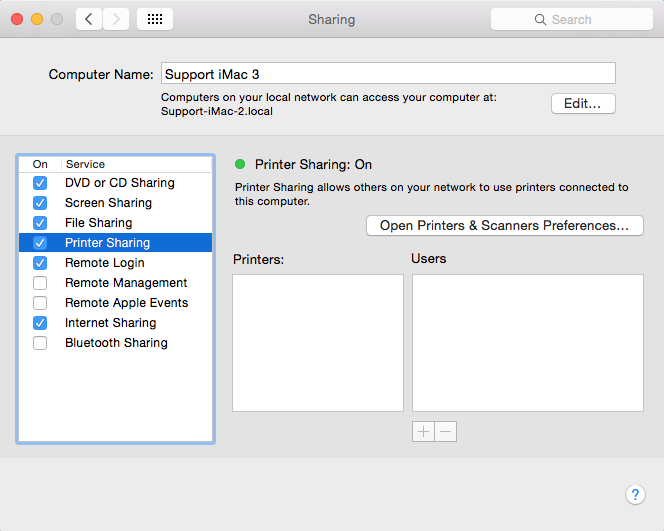
In Mac OS X, open System Preferences > Sharing > In Services enable the Printer Sharing service.
-
Go to System Preferences > Printers & Scanners > Sharing and make sure that your printer is enabled in the Share these printers with other computers list.
-
Make sure that your printer is able to print from the Mac side (print a test page).
-
Open virtual machine configuration > switch to Hardware tab > Shared Printers and make sure the "Share Mac printers with [the name of the virtual machine]" check-box is empty.
-
In Windows VM download and install Apple Bonjour for Windows
-
When Bonjour installation is complete, start Bonjour Printer Wizard on your Windows desktop.
-
Click Next. Select your printer from the Wizard's Shared Printers list and click Next.
-
You should select either Generic/MS Publisher Color Printer for your printer or your printer particular model if it's available in the list. Hit Next.
- Click Finish and try printing any document using the Bonjour printer.
TROUBLESHOOTING
If Bonjour printer doesn't work after completing Bonjour wizard, do the following:
- Uninstall any native drivers for the printer from Windows you may have already installed.
- Make sure you have selected Bonjour printer when issued print command. Windows may show you several printers available.
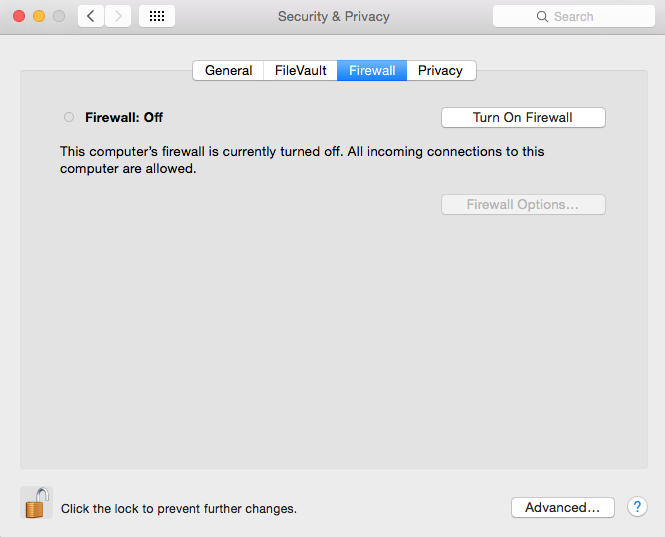
Please also check Firewall settings on the Mac side (System Preferences > Security & Privacy > Firewall tab) and turn off the Firewall.
Was this article helpful?
Tell us how we can improve it.