
Parallels Desktop for Mac interface localization
You can choose which interface language Parallels Desktop for Mac will use.
The Parallels Desktop for Mac installation image is multilingual and installs the product in all its supported languages.
The language of the Parallels Desktop for Mac interface can be changed by simply changing the language of macOS®.
Note: For license keys sold in China Parallels Desktop interface language is predefined. It can be either Chinese Traditional or Chinese Simplified depending on macOS® language settings.
Setting the language of Parallels Desktop for Mac®
- Quit Parallels Desktop.
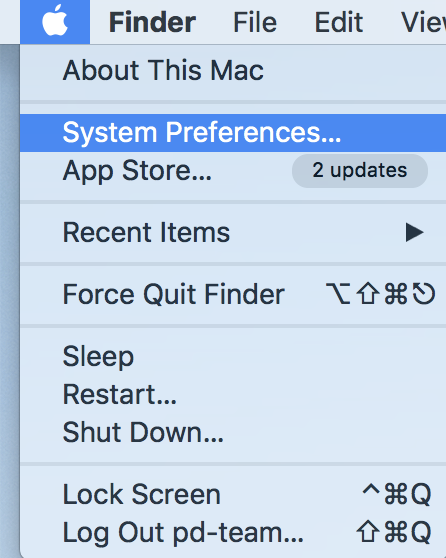
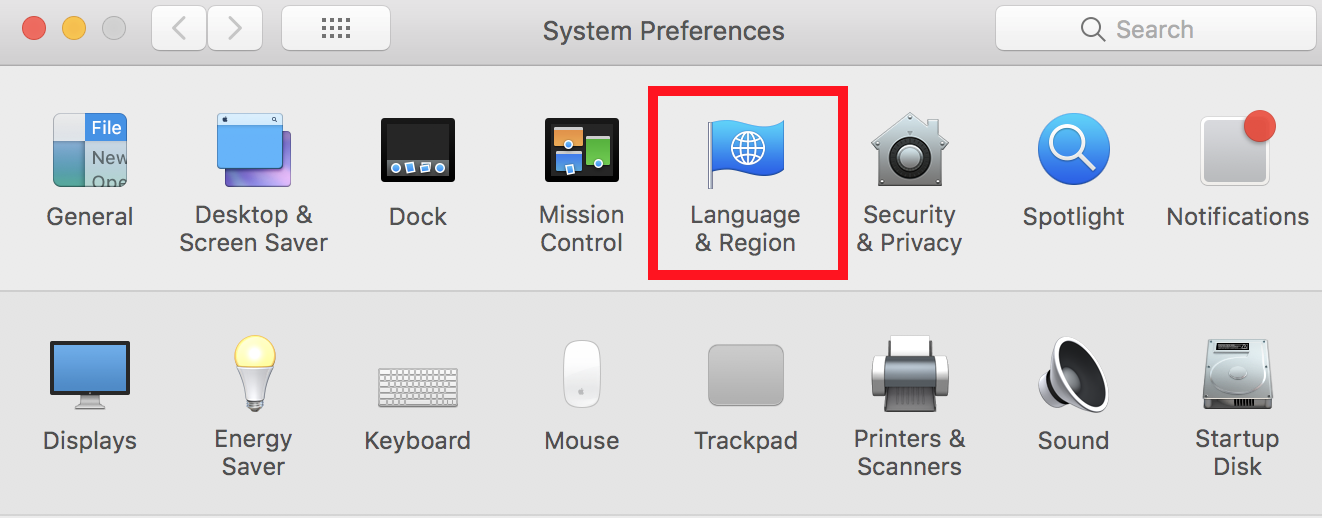
- Choose Apple logo® > System Preferences > Language & Region.
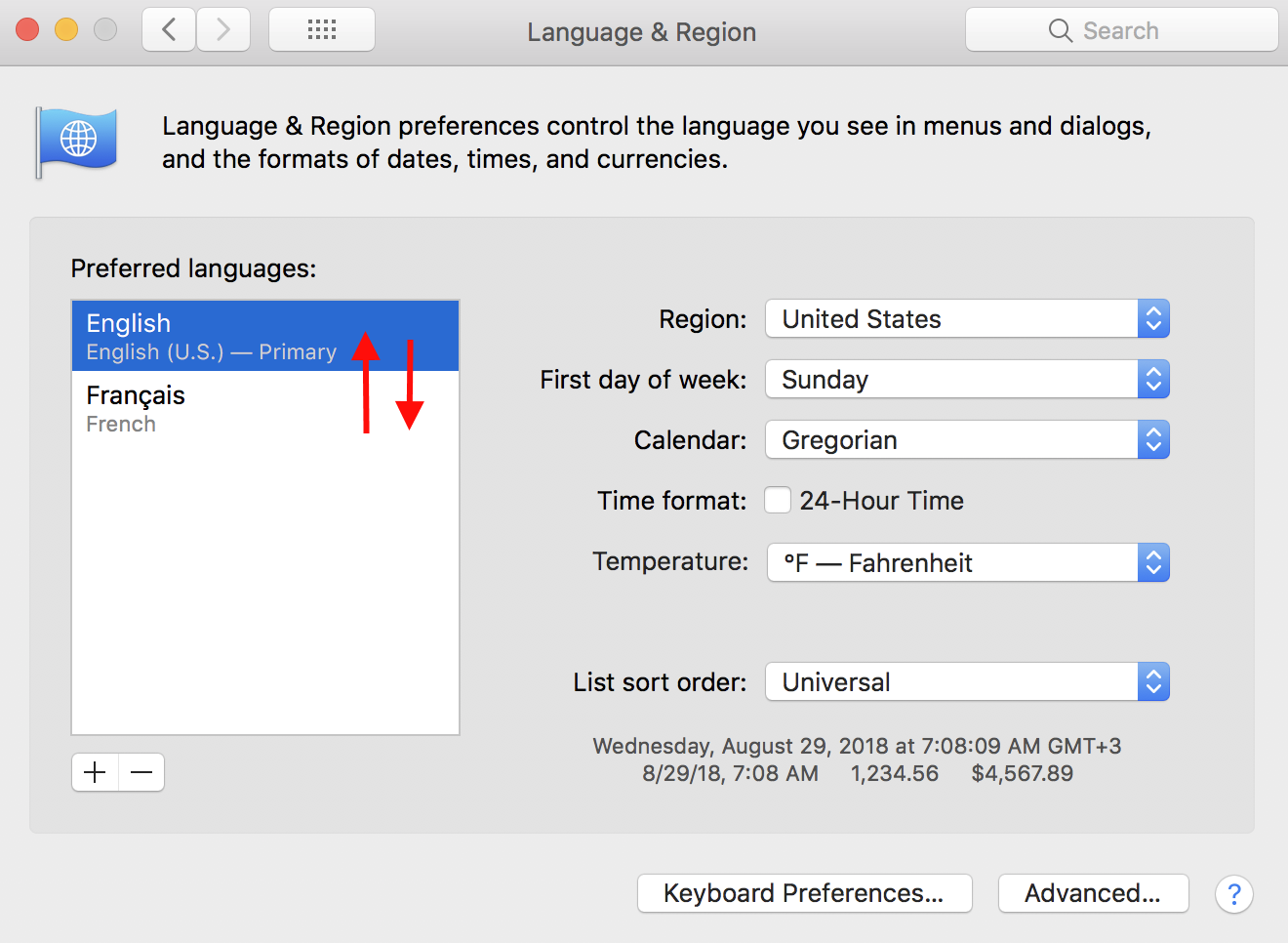
- Select your primary language by dragging the desired language to the top.
-
Start Parallels Desktop.
Troubleshooting
-
If Parallels Desktop language wasn't changed after changing System Preferences language settings be sure that none of virtual machines available are using headless mode. Change virtual machine configuration to Start up and shut down manually, restart the Mac® and start Parallels Desktop again.
-
Using Activity Monitor check that there are no Parallels Desktop instance(s) running. If needed quit Parallels Desktop process and start Parallels Desktop again.
Was this article helpful?
Tell us how we can improve it.